
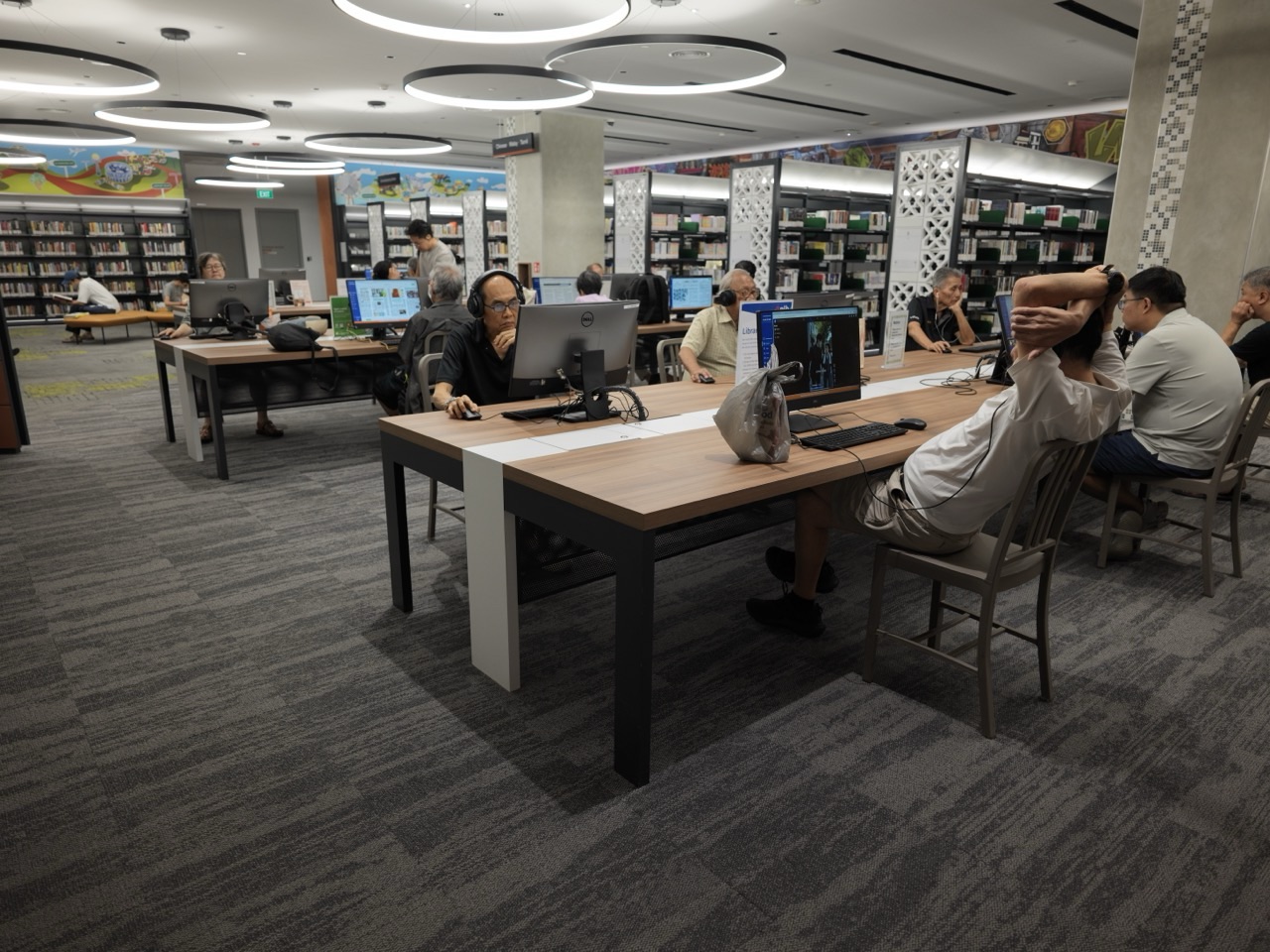
Secondary 1 Computing and Digital Literacy vocabulary helps Singapore students understand devices, file management, online safety, spreadsheets, creative software, visual programming and artificial intelligence. This guide gives 200 computing words and phrases with easy definitions, followed by original Scratch-style examples, data activities, source-checking exercises and a four-week revision plan. The complete word list appears immediately below.
Singapore’s MOE uses the Find–Think–Apply–Create approach to develop Digital Literacy and Technological Skills. Students encounter digital skills through different subjects, school programmes and co-curricular learning. MOE announced that an updated Code for Fun programme strengthening AI skills would be available to all schools in 2027. However, there is no single nationally compulsory Secondary 1 Computing examination corresponding to this 200-word list. The separate G1 Computing K127 national syllabus starts from the 2026 Secondary 3 cohort, with its first SEC examination in 2027. This page is a foundation resource, not a claim that every Secondary 1 school teaches the K127 syllabus.
- 200 defined terms in ten themes, from hardware to spreadsheets, block programming, AI and online safety
- Worked real-life examples using school files, simple Scratch logic, budget sheets and source verification
- A four-week learning plan, parent diagnostic, current MOE links and clear differences between Secondary 1 digital learning and later Computing examinations
Top 200 Secondary 1 Computing vocabulary: complete word list
The 200 entries include common digital-life foundations and terms that help students prepare for more specialised computing later. Terms such as machine learning, network latency and ransomware are extensions; they are not guaranteed Secondary 1 assessed content. Choose a learner’s current school tasks first. Know how to use and explain a word, not merely how to copy its definition.
1. Computer devices and essential hardware — words 1–20
- computer — an electronic device processing instructions and data.
- hardware — the physical components of a computing device.
- software — programs and instructions that run on hardware.
- processor — a component that carries out instructions.
- central processing unit — the main processor responsible for general computation.
- memory — storage used to hold instructions and data during operation.
- RAM — temporary working memory used while software runs.
- storage — space holding files and programs over time.
- solid-state drive — a storage device using flash memory without spinning disks.
- input device — equipment used to enter data or instructions.
- output device — equipment presenting results from a computer.
- keyboard — an input device with keys for text and commands.
- touchpad — a touch-sensitive surface used to control a pointer.
- monitor — a screen displaying visual output.
- microphone — a device converting sound into a digital or electrical input.
- webcam — a camera used to capture images or video for a computer.
- peripheral — an attached device supporting additional functions.
- port — a connection point for a device or communication.
- battery — a portable source of stored electrical energy.
- operating system — software that manages hardware and other programs.
2. Files, folders and productive organisation — words 21–40
- file — a named collection of stored information.
- folder — a container used to organise files and subfolders.
- filename — the name used to identify a particular file.
- file extension — letters following a filename that often indicate its format.
- file format — the structure used to store a document or media item.
- document — a digital file containing written or mixed content.
- spreadsheet — an application or document organising data in cells.
- presentation — a set of slides used to communicate information.
- save — record changes to a file for later use.
- save as — create another saved version with a chosen name or location.
- download — transfer a file from a remote source to a local device.
- upload — send a file from a local device to a remote service.
- export — create an output in a selected format.
- import — bring external data or media into an application.
- backup — an additional copy used for recovery if data is lost.
- version — a particular revision of a document or software item.
- file path — the location of a file within a storage structure.
- cloud storage — remote storage accessed over a network.
- synchronisation — keeping copies or states aligned across devices.
- access permission — a rule determining who may view or edit an item.
3. Internet, networks and online information — words 41–60
- internet — a worldwide network of connected networks.
- website — a collection of related web pages under an address.
- web page — a document displayed through a web browser.
- browser — software used to navigate and display web content.
- search engine — a service used to find information on the web.
- URL — a web address that identifies a resource.
- hyperlink — a selectable reference taking a user to another resource.
- network — connected devices capable of communicating.
- Wi-Fi — wireless networking based on standard radio technologies.
- router — a device directing network traffic between networks.
- server — a system providing information or services to clients.
- client — a device or program requesting network services.
- bandwidth — the capacity of a communication channel to carry data.
- latency — the delay before a requested response or data arrives.
- packet — a small unit of information sent across a network.
- IP address — an identifier used for devices in IP networks.
- domain name — a human-readable internet address.
- HTTPS — a web communication protocol that protects data in transit.
- digital source — the origin from which online information was obtained.
- citation — a reference identifying the source of used information.
4. Computational thinking and algorithms — words 61–80
- computational thinking — framing problems for systematic computer-assisted solutions.
- decomposition — breaking a complex problem into smaller manageable parts.
- abstraction — keeping essential details while ignoring unnecessary ones.
- pattern recognition — identifying repeated or related features.
- generalisation — adapting a solution to a class of similar problems.
- algorithm — a sequence of defined instructions solving a problem.
- pseudocode — informal instructions resembling program logic.
- flowchart — a diagram showing steps and decisions.
- sequence — instructions carried out in a specified order.
- selection — choosing a path based on a condition.
- iteration — repeating an instruction block.
- loop — a structure performing repeated actions.
- condition — a test that determines what happens next.
- Boolean — a value that is true or false.
- variable — a named place for storing a changing value.
- constant — a value intended to remain fixed.
- expression — a combination of values and operators producing a result.
- operator — a symbol or action combining or comparing values.
- debugging — finding and correcting faults in a program.
- testing — running defined checks to see how a solution behaves.
5. Visual coding, games and Scratch — words 81–100
- Scratch — a visual block-based programming environment.
- sprite — a character or object used in a Scratch project.
- stage — the background area where a Scratch project runs.
- block — a visual programming piece representing an instruction.
- event block — a block starting actions when a defined event occurs.
- motion block — a block controlling movement or direction.
- looks block — a block changing appearance, messages or effects.
- sound block — a block controlling playback and audio effects.
- control block — a block managing loops, conditions or waiting.
- sensing block — a block reading interactions or environmental state.
- variable block — a block working with stored program values.
- broadcast — a message sent to trigger actions in other scripts.
- costume — an appearance assigned to a Scratch sprite.
- backdrop — the image shown behind sprites on the stage.
- coordinate — a numerical value locating a point.
- x-position — a sprite’s horizontal location.
- y-position — a sprite’s vertical location.
- collision detection — checking whether objects have touched.
- game state — stored information about what is happening in a game.
- score counter — a displayed number tracking points.
6. Documents, slides and multimedia creation — words 101–120
- word processing — creating and editing structured text documents.
- text formatting — changing how letters and paragraphs appear.
- heading — a title marking a section within content.
- paragraph — a group of sentences developing one idea.
- alignment — positioning content relative to margins or other elements.
- margin — space between content and a page boundary.
- table — information arranged in rows and columns.
- image resolution — the detail represented in an image.
- pixel — the smallest addressable unit in a raster image.
- raster graphic — an image built from a grid of pixels.
- vector graphic — an image built from mathematically defined shapes.
- aspect ratio — the relationship between width and height.
- slide layout — the arrangement of content on a presentation slide.
- visual hierarchy — the relative importance of elements in a design.
- animation — a time-based change in a visual object.
- transition — an effect or change between slides or states.
- timeline — an ordered arrangement of events or media in time.
- audio track — a recorded sound layer in a project.
- video clip — a short recorded moving-image segment.
- alt text — brief words describing meaningful content in an image.
7. Spreadsheets, formulas and data — words 121–140
- cell — one location within a spreadsheet grid.
- row — a horizontal set of cells.
- column — a vertical set of cells.
- worksheet — an individual spreadsheet page.
- workbook — a file containing one or more worksheets.
- cell reference — a coordinate naming a spreadsheet cell.
- formula — an expression used to calculate a result.
- function — a predefined operation used in a formula.
- SUM — a function adding selected values.
- AVERAGE — a function calculating the arithmetic mean.
- COUNT — a function counting numeric entries.
- IF — a function choosing an output based on a test.
- range — a collection of cells selected together.
- sort — rearrange rows or items by a chosen key.
- filter — show entries matching selected criteria.
- data validation — rules restricting or checking allowed input.
- chart — a graphical display of numerical data.
- bar chart — a chart comparing quantities with bars.
- line chart — a chart often used to show change across ordered values.
- outlier — a data value unusually distant from the rest.
8. AI, automation and responsible interpretation — words 141–160
- artificial intelligence — computer-based methods performing tasks associated with human intelligence.
- machine learning — methods using data to train models for tasks.
- training data — examples used to develop a model.
- model — a learned or designed system representing patterns or rules.
- prompt — an instruction or input given to a generative system.
- generative AI — AI capable of producing new text, images or other outputs.
- chatbot — software designed to exchange messages with a user.
- classification — assigning items to categories.
- prediction — an estimate of an unknown or future value.
- recommendation system — a tool suggesting relevant items based on rules or data.
- automation — using software or systems to carry out tasks.
- human oversight — review and control by responsible people.
- AI hallucination — an invented or unsupported output presented as factual.
- AI bias — unfair or distorted behaviour resulting from data or system design.
- accuracy — closeness of information or results to the correct value.
- explainability — how understandable a system’s reasoning or operation is.
- transparency — clarity about how a system or process operates.
- fairness — avoiding unjustified unequal treatment.
- verification — checking a claim against reliable evidence.
- limitations — conditions restricting what a system can do reliably.
9. Cyber wellness, security and digital citizenship — words 161–180
- digital literacy — skills for informed and responsible use of technology.
- cyber wellness — safe and balanced participation in digital life.
- digital footprint — traces created by online activity.
- privacy — control over personal information and access.
- personal data — information relating to an identifiable individual.
- password manager — software securely organising account credentials.
- multi-factor authentication — account verification using more than one factor.
- phishing — deceptive messages trying to obtain credentials or information.
- scam — fraudulent attempt to obtain money or information.
- malware — software designed for harmful or unauthorised actions.
- ransomware — malware seeking payment by blocking access to data.
- cyberbullying — harmful behaviour carried out using digital platforms.
- impersonation — pretending to be another person or organisation.
- misinformation — false or misleading information, regardless of intention.
- disinformation — false information deliberately spread to mislead.
- deepfake — synthetically created or altered media imitating reality.
- copyright — legal rights protecting certain original creations.
- consent — permission given knowingly and freely.
- online etiquette — respectful conduct when interacting online.
- incident reporting — telling the right person or service about a harmful event.
10. Projects, collaboration and problem solving — words 181–200
- problem statement — a clear description of what needs solving.
- requirement — a condition that the solution must satisfy.
- constraint — a limit such as time, cost or technology.
- user — a person intended to use a product or solution.
- stakeholder — a person or group affected by a project.
- prototype — an early version made to explore or test ideas.
- design iteration — another cycle of testing and improvement.
- test case — a defined input and expected outcome used for checking.
- expected output — the result a system should produce under given conditions.
- actual output — the result observed when a system runs.
- error message — text describing a detected problem.
- reproducibility — the ability to obtain the same outcome under matching conditions.
- usability — how easily a user can complete a task with a design.
- accessibility — how well people with different needs can use a resource.
- feedback — information used to improve an outcome.
- documentation — written information explaining a system or process.
- collaboration — people working together on a shared goal.
- peer review — evaluation of work by someone with relevant knowledge.
- digital artefact — a file or product created using digital tools.
- reflection — thoughtful review of decisions, outcomes and next steps.
What does MOE mean by Find, Think, Apply and Create?
The EdTech Masterplan 2030 frames Digital Literacy and Technological Skills through Find–Think–Apply–Create. Find concerns gathering and evaluating information responsibly. Think includes analysing data, identifying patterns and approaching problems systematically. Apply involves using devices and software effectively and transferring skills to real tasks. Create includes making useful digital content or artefacts and collaborating with others.
A Secondary 1 student can demonstrate the four stages without being a highly experienced programmer. For example, a class wants to create a short digital guide to the school’s recycling points. Students find accurate location information, think about users’ needs, apply spreadsheet and presentation skills, and create a clear output. Finally, they test whether classmates can understand and use it. The same stages connect to English, Mathematics, Science, Geography and school projects.
Under this approach, success is not measured by how many applications a student has installed. A learner who can name an image file clearly, protect a password, check a source and correct a formula error has developed real competence. Digital literacy is more valuable when it reduces confusion, supports learning and helps people behave safely in daily life.
Worked example 1: the difference between hardware, software and a file
Imagine that Alicia is using a laptop to prepare a school project. The keyboard and screen are hardware. The word processor is application software. The operating system manages the computer and helps the application access devices. The completed project saved as a document is a file. These terms describe different parts of one familiar task.
If the file seems lost, installing a different computer does not necessarily solve the problem. Ask where the document was saved, its filename and extension, and whether it was stored locally or in a permitted school cloud account. A good file name might contain the subject, topic and revision date rather than ‘finalfinalnew2’. Good organisation reduces time wasted on repeated work.
Worked example 2: save, export, backup and synchronisation
A student writes a report in an editable format, then creates a PDF copy for submission. Save records the latest editable version; export creates a file in a different output format. Backup means keeping a separate recoverable copy. Synchronisation may keep devices aligned but is not always a substitute for an independent backup: accidental deletion can synchronise too.
Ask students to check the teacher’s submission requirements. Do they need an editable file or a fixed PDF? Does the learning platform accept the file size? Is a school-approved cloud drive permitted? Have permissions been set correctly? These apparently simple questions frequently matter more than sophisticated coding terminology.
Worked example 3: decomposition turns a large problem into tasks
Problem: Create a simple interactive quiz about Singapore transport and safety. A beginner may feel overwhelmed by the whole assignment. Decomposition breaks it into smaller tasks: prepare the questions, display the first question, accept an answer, check the answer, update the score and show feedback. Each task can then be built and tested.
Abstraction means keeping the details needed for the task and ignoring unrelated complications. The program needs to know the correct answer and the student’s selected answer; it does not need the student’s home address or personal identity. Algorithmic thinking means specifying the order of actions clearly enough that the computer or a classmate can follow it.
A human-language algorithm could be: ‘Set the score to zero. Ask the first question. If the answer matches the correct choice, add one point. Give suitable feedback. Move to the next question. At the end, display the score.’ A student who can describe this sequence clearly is preparing for programming. They are already learning useful reasoning.
Worked example 4: a Scratch-style program using sequence, condition and loop
In Scratch, a sprite is an object on a stage. Blocks are joined to describe what the sprite does. An event block can start a script when the green flag is clicked. A loop repeats actions and a condition decides when something should happen.
Illustrative block logic: When the green flag is clicked, set score to 0. Repeat until five questions are answered: show a question, ask for an answer, check whether it matches the expected answer, change score by 1 if correct, then move to the next question. At the end, display the score and one useful learning message.
A common bug is counting an answer as correct more than once, or failing to reset a variable when the game restarts. The repair is not to hide the bug by changing the displayed result manually. Identify which event or loop causes it, test one change and run the same test again. Debugging is an ordinary part of creation, not proof that a student is bad at computing.
Worked example 5: a project that teaches x-position and y-position
A sprite’s x-position is its horizontal location and its y-position is its vertical location. In a Scratch stage, changing the x-value generally moves an object left or right, while changing the y-value moves it up or down. A pupil can create a small maze in which arrow keys move a sprite one step at a time.
The challenge is not simply to increase the speed of movement. It is to keep the sprite within suitable boundaries and detect when it touches an obstacle. A short program can test a collision and provide feedback. This links coordinates from Mathematics to logic from Computing and visual design from Art. The task can be adjusted according to the child’s current experience.
Worked example 6: spreadsheets for pocket-money decisions
Imagine a table showing a student’s imaginary spending over four days: $3.50, $4.00, $2.50 and $5.00. In a spreadsheet, four values might be entered in cells B2 through B5. The formula =SUM(B2:B5) gives $15.00. The function AVERAGE(B2:B5) gives $3.75. The colon in the cell range means ‘from this cell through that cell’. These figures are a teaching example, not advice about the appropriate allowance.
A student should be able to read the formula, check what cells it includes and decide whether it answers the question. If one value is accidentally entered as text, a spreadsheet function may not use it as expected. If the student chooses the wrong range, the result can look credible while being incorrect. Verification means checking the underlying data and method, not accepting a result because it appears in a neat chart.
Worked example 7: understand charts and avoid misleading visuals
A bar chart might compare the numbers of library visitors on Monday, Tuesday and Wednesday. A line chart may better communicate a sequence of changes across time. The type of chart should suit the meaning of the data. Axis labels, units, sample size and scale all affect the reader’s interpretation.
A chart can mislead if its vertical axis starts at an unusual value without clear signalling, if categories are unequal but shown as comparable, or if a percentage has no stated denominator. Students should ask, ‘What exactly is being measured? Which values were omitted? Do these bars answer the question?’ The skill of questioning a graph is just as important as the skill of creating one.
Worked example 8: privacy and school collaboration
Three students work on a shared class report. One student should be able to edit, another may need to review, and a parent might need only to view the final approved copy. Access permission determines which actions are allowed. A link labelled ‘Anyone can edit’ is not always appropriate for a school file that contains students’ work or personal information.
Use authorised school accounts and teacher guidance. Keep identifiable information to the minimum necessary. Do not post classmates’ personal data, passwords or private chat messages in a shared document merely because the software makes sharing easy. If sensitive content has been exposed, inform a trusted adult or the school’s designated support channel rather than trying to hide the mistake.
Worked example 9: recognising online scams and impersonation
A message claims to come from a delivery company and says that a payment must be made immediately through an unfamiliar link. This might be a phishing attempt or another scam. Warning signs include pressure, unusual links, requests for personal information or a mismatch between the sender’s claimed identity and the official service.
The student should avoid clicking a suspicious link or providing passwords and one-time codes. When appropriate, a responsible adult can verify the claim through the company’s independently obtained official website or app. The point is not that every unexpected message is malicious. The skill is to pause, check and use trusted communication channels rather than reacting automatically.
Worked example 10: generative AI can sound right and still be wrong
Suppose a student asks an AI chatbot for a quotation from a science textbook. The tool produces a fluent sentence and a precise-looking page number, but the quotation cannot be found. That is an example of a possible AI hallucination—a statement presented as factual without reliable support. The student must verify the claim against the book or an authoritative reference.
AI-generated text, pictures and audio may also reflect bias, outdated information or incorrect relationships. Ask what the data source is, what a result leaves out, and whether a human needs to review the output. This is especially important for private information or any high-stakes choice. A useful practice is to ask a model for an explanation and then independently check one factual claim rather than copying the whole answer.
MOE announced in March 2026 that Cyber Wellness content now includes validating generative-AI information and identifying deepfakes, and that AI literacy would be strengthened across schooling. These are practical reasons to learn terms such as verification, privacy, deepfake and human oversight. The same habits matter when students encounter claims on social media and in group chats.
How Secondary 1 digital literacy relates to later Computing
MOE’s G1 Computing syllabus K127 explicitly states implementation from the 2026 Secondary Three cohort and a first national examination in 2027. It covers areas including computer fundamentals, networks, impact of computing, documents, spreadsheets, media software and programming. A separate G2 Computing syllabus also supports later national examination pathways. These documents are useful for understanding where a student’s interests could lead, but they are not instructions to teach every upper-secondary module to all Secondary 1 students.
For Secondary 1, the right foundation may be safe accounts, managing files, constructing clear presentations, reading data, using school-approved tools and understanding basic coding logic. Some schools offer Code for Fun, applied learning or enrichment experiences. The specific programme is determined locally. Students can develop confidence without needing a powerful gaming laptop or paid programming course.
A four-week Computing vocabulary and practice plan
| Week | Focus | Evidence of learning |
|---|---|---|
| 1 | Devices, files, folders, websites and safe accounts | Organise a sample project folder and explain the purpose of its files |
| 2 | Algorithms, Scratch, loops, conditions and debugging | Build or describe a five-question quiz and fix a test case |
| 3 | Spreadsheets, formulas, charts and visual communication | Calculate totals correctly and explain a chart’s scale |
| 4 | AI literacy, privacy, collaboration and source verification | Identify an unsupported claim and document a safe verification step |
Choose five to eight terms from the active task rather than forcing a child to copy the entire list. A useful ten-minute routine is: explain the meaning, show one example, distinguish a nearby term and apply the idea in a small activity. Return to the vocabulary after a few days. A student who can debug a program or explain a suspicious link has learned more than one who remembers many words but cannot act on them.
A safe mini-project: design a neighbourhood information guide
Students can create a fictional or school-approved guide to nearby public amenities. The project has five stages. First, define the audience: who needs the information and why? Second, gather facts from suitable official pages and record their sources. Third, organise the information into a spreadsheet with headings. Fourth, create a short presentation or poster. Finally, ask a classmate to review whether the output is clear and whether every claimed fact has been checked.
Do not publish an individual’s route, daily schedule, photographs or private addresses as part of the exercise. If a neighbourhood location is included, use suitable public information and obey the school’s privacy guidance. A good digital artefact is useful, accessible and accurate, not merely colourful. Students can practise alt text, readable contrast and clear headings so that more people can understand the result.
- Find: collect reliable public information and record the sources.
- Think: decide what matters to the reader; identify gaps or contradictions.
- Apply: use spreadsheets, document formatting and presentation features correctly.
- Create: produce the approved guide and test it with a real user.
- Reflect: document what changed after feedback and what remains uncertain.
Troubleshooting: the most common Computing learning gaps
- Cannot find a file: practise names, formats, folders and storage locations.
- Can copy Scratch blocks but cannot explain the logic: describe the algorithm before opening the project.
- A program behaves unexpectedly: construct a test case, inspect the state and debug one step.
- Formulas give odd totals: verify ranges, numeric types and units.
- Slides are attractive but confusing: improve visual hierarchy, labels and audience focus.
- AI output is accepted without checking: practise verifying one specific factual statement.
- Student avoids asking for help: separate the software problem from the student’s confidence and teach a clear support process.
- A shared link exposes too much: review account access and seek school help promptly.
Frequently asked questions
Is Computing a compulsory Secondary 1 national examination subject?
No. This guide covers computing foundations and digital literacy; MOE’s G1 K127 national Computing syllabus is an upper-secondary pathway beginning with the 2026 Secondary Three cohort.
Are these 200 words official MOE Secondary 1 Computing requirements?
No. They are independently selected teaching terms and include useful extensions beyond any one school’s year-one programme.
What does Find–Think–Apply–Create mean?
It is MOE’s digital-skills framework for locating information, reasoning, using tools effectively and producing useful digital work.
Is Scratch suitable for beginners?
It is designed for block-based programming and can help beginners explore sequences, conditions, loops and events.
Do students need expensive software?
Not necessarily. School-approved tools and simple examples can support most foundation learning.
What should I do if a student receives a suspicious message?
Avoid interacting with unknown links, protect credentials and verify through independently obtained official channels or a trusted adult.
Can students use generative AI for school assignments?
Follow the school’s specific rules, verify factual claims, protect privacy and ensure the student understands the final work.
How can parents tell whether Computing learning is improving?
Ask students to explain an algorithm, find a bug, check a data chart or verify a digital claim rather than only naming software features.
Official MOE Computing and Digital Literacy resources
The MOE EdTech Masterplan 2030 explains Singapore’s digital learning approach. MOE’s March 2026 education announcements describe AI literacy, Cyber Wellness changes and the planned 2027 Code for Fun update. For later examination planning, see the G1 Computing K127 syllabus, introduced from Secondary Three in 2026, and SEAB 2027 G1 subject directory. These are references for different parts of the system, not a single national Secondary 1 Computing course.
Connected eduKate articles: Secondary 1 CCE for cyber wellness and ethical choices; Secondary 1 Mathematics for formulae and data; Secondary 1 D&T for design thinking and testing; and eduKate Singapore learning hub.
Editorial review: November 2026. All examples and 200 definitions are independent educational material. This is not an official National SEC Secondary 1 Computing syllabus, a security guarantee or a substitute for school ICT and safeguarding rules.