
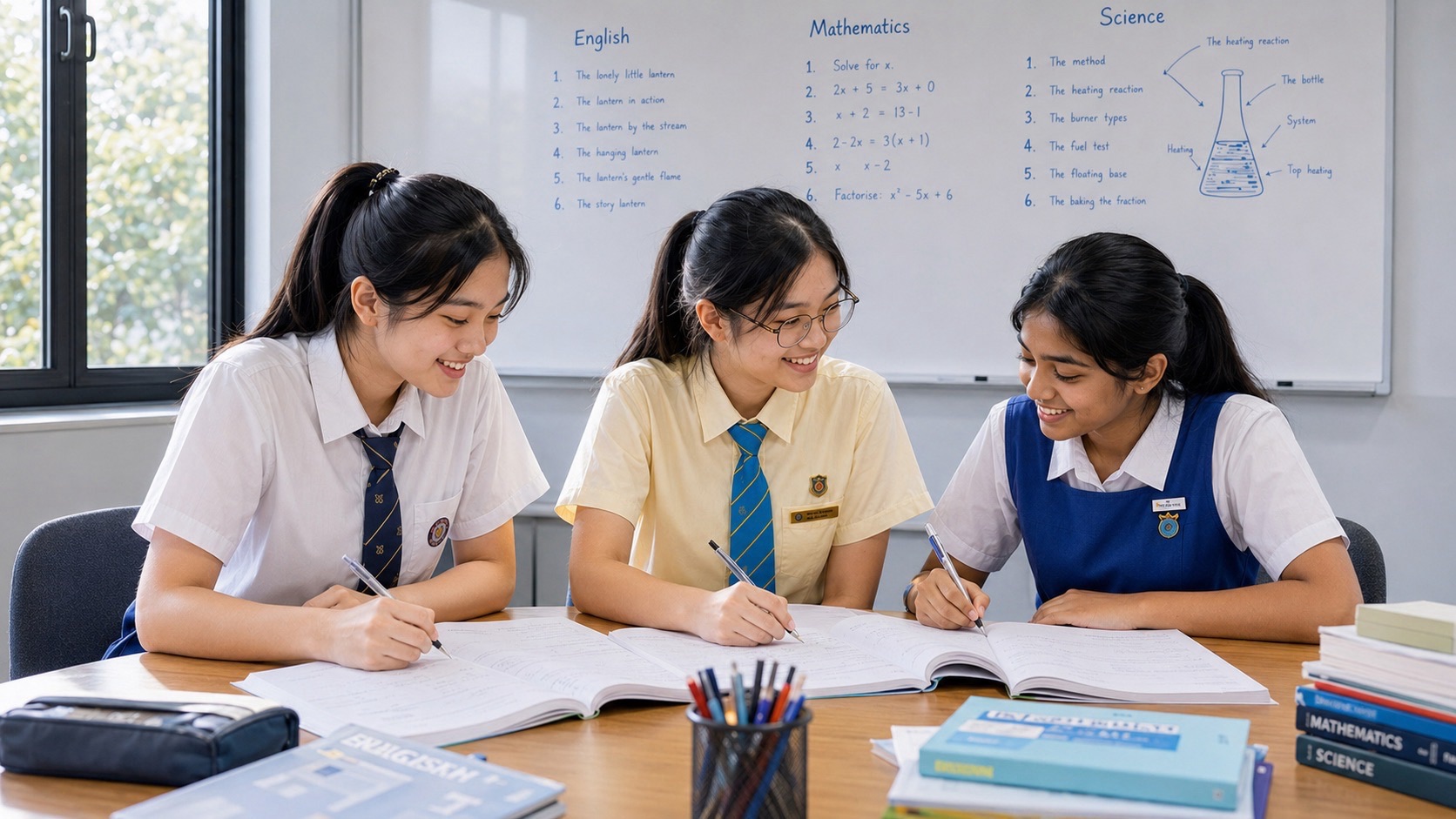
Looking for a Bukit Timah Secondary 3 G1 Computing tutor? Start with a task your child can try on their own. A student may understand why a chart is useful yet need help creating one from the right data. Another may build a working Scratch game but struggle to explain why the same rule fails when the input changes. A small group earns its place when the tutor can see where each learner gets stuck and help them take the next step independently.
Secondary 3 G1 Computing combines computer systems, networks and responsible technology use with hands-on work in documents, spreadsheets, media and programming. The published 2027 national syllabus, K127, gives 60% to the lab-based paper and 40% to the e-examination. In Secondary 3, the useful preparation is to make small files, test what they do and keep track of how to improve them. Ask the school which topics, tools and assessments are coming up this term.
- Check your child’s actual course, examination year and school software before buying materials or choosing a tutor.
- Use the 2027 SEC G1 Computing syllabus, K127, to understand the two compulsory papers.
- Practise the decisions behind an artefact as well as the steps needed to build it.
- Reopen saved files and test your own work with a different input before calling it finished.
- Start with school feedback and a short home practice cycle. If a difficulty persists, look for a small group that teaches the precise skill your child needs.
G1 is the level of this subject under Full Subject-Based Banding. It does not describe the student’s level in every other subject. A student can take Computing at one level and Mathematics or English Language at another. In Secondary 3, ask for the school’s subject combination and the next unit outline. The same broad title, such as Computing or Computer Applications, may appear in old files without meaning that the resources match a current school class.
MOE’s G1 Computing teaching syllabus starts with the 2026 Secondary 3 cohort. SEAB lists K127 as a new G1 syllabus for the first Singapore–Cambridge Secondary Education Certificate examinations in 2027. It does not give K127 an equivalent 2026 code in the school-candidate list. Older materials may be useful for an isolated skill, such as editing a table, but check the current modules and assessment before treating any older paper as a rehearsal. School offerings and subject combinations vary, so confirm the exact course directly with the school.
A student who takes Secondary 3 in 2026 and progresses to Secondary 4 in 2027 will usually look at the 2027 syllabus. A student who starts Secondary 3 in 2027 and progresses to Secondary 4 in 2028 will normally look for the 2028 version. The 2027 syllabus gives everyone a specific starting reference, while the applicable examination-year listing and the school give the final answer for an individual learner. For this term, use the school’s timetable and assignment instructions.
At a subject-selection conversation, ask what a usual assignment looks like, how much supervised computer time there is and what would help a beginner settle in. A young person who likes drawing or reporting may be interested in the media and document work. Someone who enjoys spotting patterns may enjoy making a program or testing formula results. Give the learner a few ordinary tasks before assuming a preference for technology automatically makes every module a good fit.
MOE’s G1 Computing teaching syllabus · SEAB’s 2027 G1 school-candidate listing
| Paper | Duration | Weight | What students do |
|---|---|---|---|
| Paper 1 | 1 hour 15 minutes | 40% | Answer on-screen questions across the seven modules. |
| Paper 2 | 2 hours | 60% | Produce and save practical work using documents, spreadsheets, media and programming. |
Paper 1 is a 75-minute e-examination worth 60 marks and 40% of the total. It draws on all seven modules. The first section has 20 multiple-choice questions. The second section has short structured questions worth 40 marks in total. A student may have to explain a choice or apply a concept to an unfamiliar situation. For practice, ask the student to give a reason after selecting an answer. A reason tied to the situation tells you more than an answer letter.
Paper 2 is a two-hour lab-based examination worth 90 marks and 60%. The published scheme groups its tasks into media software, document processing with spreadsheets, and programming. The school or examination centre provides approved software for the lab paper. Candidates must save the work for electronic submission within the time allowed. Both papers are compulsory and all questions in both papers are compulsory. Check the applicable school instructions for practical arrangements.
The two papers call for a related pair of abilities. A student may describe what a fixed spreadsheet reference does in one paper and use a fixed reference correctly in a practical task. Practice should move in both directions. Ask them to make a change first and tell you what they did, then give them the explanation and ask for an example they can build. Keep the tools familiar when teaching the concept. Later, change the context so that the student has to choose the function on purpose.
In Secondary 3, small rehearsals help students discover their habits before they attempt a full paper. A fifteen-minute session can cover reading the instructions, producing one file and reopening it. On another day, choose two short questions and ask for two clear reasons. Let a learner see exactly what they completed, what they missed and what they want to remember next time. Near an actual assessment, use the scope and format supplied by the school.
SEAB’s 2027 K127 examination syllabus · eduKateSG’s fuller guide to the K127 papers
Computer fundamentals make more sense when students follow a request from beginning to end. Picture a school librarian registering the return of a book. A barcode reader captures a code. The computer processes it by finding the matching record and updating the loan information. The screen shows the updated status. Ask the student which action is input, which is processing and which is output. Then ask what happens if two books carry different codes but the returned copy is scanned incorrectly.
That example separates a system’s steps from the accuracy of its data. The software might perform every step it was given and still update the wrong record after receiving the wrong input. A student who says “the computer got it wrong” can practise naming the exact step to check. Try a similar example with an assembly attendance list. What should appear if a participant’s ID has not been entered? Which checks could reveal a missing or duplicate entry before the total is shared?
Use the same model to distinguish hardware, the operating system and applications. In a small workshop computer, the keyboard and monitor are physical parts. The operating system manages resources and supports running the applications. A spreadsheet application edits the stock sheet. If the student can give a job for each, the definitions become easier to remember. A useful follow-up asks which remains after powering off, a saved spreadsheet on storage or temporary data held in volatile memory.
Networking makes a second good story. When a student opens a file stored in an approved cloud service, their device requests information from a service over a network. A local copy can be available without an internet connection, depending on where it was saved and the application. A cloud copy can make it easier to work on the same file from more than one place. Ask what will happen on a bus with poor internet access, and what happens if the file was never downloaded. One benefit and one constraint make a stronger response than a general claim that one storage option is better.
A practical child-friendly discussion on responsible use can start before opening any software. If classmates share a document link, decide who needs to see it and what permission they need. An event schedule can use group numbers instead of full student names. If a message appears to come from the organiser and asks for a password, the safe response is to verify it through a known channel and avoid entering credentials. In practice files use invented names or codes, and keep school work on school-approved systems.
Imagine a Secondary 3 CCA volunteer writing a one-page briefing for a lending table at an open house. Visitors need to see collection times, the return point and what to do if an item is missing. Team leaders need the contact point and the closing checklist. The student’s first job is to decide what should be visible quickly. List the two kinds of reader and choose headings that match what each will come looking for.
A first attempt may have the right information with spaces used for alignment and blank lines used to force content onto a new page. Change the page size or add a sentence and the layout may move. Practise with the paragraph, table and page controls the school teaches. For a two-page version, a page break can move the closing checklist to its own page. A header or footer can carry useful repeated information. Use the program’s preview to see how much of the final page can actually be read.
Give the student a clearly defined revision. Move the return time from 4.30 pm to 4 pm, add a line about damaged items and make the two headings visually consistent. After editing, ask them to read the whole page as if they are visiting for the first time. Search for the old time to see if it remains anywhere. Use a new file name for the revised version if both drafts need to be retained. Reopen it and check what the reader will receive.
A three-person practice group can use three slightly different briefs with the same underlying skill. One learner writes a briefing, one a lending reminder and the third a shutdown checklist. Each works on an individual computer. The group then compares why their heading order differs. The peer exchange is useful when each learner can point to something they did and perform a similar edit independently on the next assignment.
Suppose a school group needs to estimate costs for a miniature exhibition. Rows list label cards, folders and sticker sheets. Put the quantities 12, 5 and 9 in one column and prices of $0.50, $1.80 and $0.80 in another. The line totals are $6.00, $9.00 and $7.20, for an overall $22.20. Before entering formulas, ask your child to predict the first row and estimate the grand total. The estimate gives a check later on.
If the quantity for the label cards is in B2 and the price is in C2, =B2*C2 returns the line total. Copying that formula down should change the row references. If there is a fixed budget in F1, a separate comparison formula could refer to $F$1 so that the budget cell stays fixed when the formula is copied. Have the student edit one quantity and predict the intended new result. If every line changes, or no total does, ask them to inspect the cell references before changing another input.
Next, make a chart with the item labels and their line totals. A bar or column chart lets readers compare the amounts. A line chart could show expenditure across time in a different task. Multiple valid chart types may exist, but the question may ask for a particular one. Include an informative title and verify that the source range includes the three categories and excludes the grand total. Change the data again and observe which bars move.
Students often believe a supplied example is understood because the formula works after they follow someone’s demonstration. To test transfer, move the columns, use a different number of rows and ask the student to rebuild the sheet. Have them explain what should change and what stays fixed. Another lesson might compare COUNT with COUNTA using a list with numbers, text and an empty cell. The important progress is correctly predicting the effect of an edit and checking it without a hint.
Before closing the file, check three things. Does the total match a simple hand calculation? Does the chart answer the actual question? Would someone opening the file tomorrow know what the columns mean? A learner who follows those checks may find their own error without needing a parent to read every cell. If the school is practising data validation, ask how an invented conference signup sheet could reject a negative guest count and show a clear message when the input is invalid.
For a digital signage exercise, ask the student to make a small graphic that shows visitors where to queue. The graphic needs a visible arrow, the name of the activity and enough contrast to be legible at a distance. Have the student start with a rough positioning sketch. Then ask if the design still works when it becomes a narrow label. The main message should stay readable without the teacher needing to explain it.
Vector work teaches students to think about objects, paths and layers. An arrow formed by shapes can be positioned, changed and scaled. Grouping the items gives a convenient way to move them together, and ungrouping makes it possible to edit one piece again. In a raster image, detail is represented by pixels. When the task asks for a specified export, save the editable work separately, export the requested file and reopen it at the target size. An exported picture and its original editing file support different later tasks.
In a short video, a learner might show the process for returning borrowed markers to the CCA cupboard. Make a simple shot plan with the object, location and return step. Keep faces, student identification and private school information out of the practice footage. Ask whether captions or on-screen instructions communicate the process with the sound switched off. After exporting, open the clip and watch it once from start to finish. Catching a missing last frame or an unreadable line is part of completing the work.
Detailed tools depend on the software and the school task. If your child is practising with a different application at home, ask their teacher which underlying skills transfer and which tool-specific actions they should learn at school. A student who knows how to reorder objects or trim a short clip can often describe the goal even when menus differ. For a formal rehearsal, use the software and file types that the school specifies.
Consider a simple Scratch game designed for a table at a school carnival. The player collects tokens and sees a win message after collecting five. Ask the student to state what the counter should be at the start, when it should increase and when the end message should appear. Turn those decisions into a small plan. A classmate should be able to read the plan and predict what will happen.
Make a test with no tokens, then one with four and one with exactly five. Run it again from the start to see whether the score resets. If one collision counts several times, the student can trace what the program does while the sprites overlap and inspect when the scoring event repeats. The useful question is “Which event caused the value to change?” If the student edits several blocks at once, have them save a copy, return to the last working version and make a single change they can describe.
Programming ideas have everyday counterparts. A condition is like asking whether there are enough chairs before setting out another row. A loop repeats an action. A variable stores a value that can change. The comparison matters because learners may remember a block from its colour but forget what it does. Ask the student to explain their rule first and then show the block that puts the rule into effect. If the rule itself is unclear, use paper before rearranging more blocks.
Give the learner a changed requirement once the original program runs. For instance, add a way to replay the game and reset its variables. Have the student make a test list before touching the program. Check the restart after a win and after an early stop. Let them describe one limitation they found and their next revision. For a learner who finds the task overwhelming, practise the counter in a project with no graphics first and add the sprites when the logic is reliable.
Week one begins with a question from the current school topic or a short program your child has already made. Ask where the work first becomes difficult. Choose one target, such as adding a row to a spreadsheet without breaking a formula or explaining why a client requests a file from a server. Save the first attempt and jot down which reminder the student needed. A single authentic starting sample makes comparison easier later.
In week two, use a guided example beside an independent variation. Start a fictional equipment list and demonstrate one formula, then let the student change the data and make the next formula. Ask them to say what result they expect and why. Use one of the remaining sessions for their school topic. Keep the practice short enough to fit between ordinary commitments and other homework.
In week three, build one small product and practise the complete file routine. Read the task, identify what has to be submitted, do the work, save it and reopen it. A draft that looks correct only while it is open is incomplete until it can be found again. The student can write a reminder listing the actual file names or destination the task calls for. Use this skill any time they work in an unfamiliar folder or start with an existing template.
In week four, use a changed situation. If the original task was a chart of activity costs, use a chart comparing quantities of stock. If the original game used a fixed score limit, change the ending condition and try predictable test cases. Compare the new attempt with the initial sample. Look for one decision that has become easier to make and one remaining gap. Only add a longer timed task when the student is using the basic steps reliably.
Start by asking what the school can already provide. A teacher can clarify which software and topics are in scope and suggest an appropriate independent test. If the repeated problem is a file-handling mistake at home, a short routine may fix it. If the school’s practical work reveals uneven understanding across several tasks, targeted help might be useful. Ask your child which kind of support they would be willing to use and which evenings are realistic.
A small group works when every learner can practise at a workstation or other suitable device, receive feedback and try a new example independently. Watch for a tutor who asks the student to predict what output should appear and who makes time to reopen the saved file. The tutor should be able to name the software and modules they teach and explain how the lesson will fit the student’s current school sequence. Confirm that the provider teaches Secondary 3 G1 Computing and check class availability, travel time and fees directly.
Bring one recent school assignment, the teacher’s comments where shareable, a sample your child completed alone and a description of the software used. Do not circulate candidate materials, logins or other students’ information. Agree on a small outcome for the first month, such as selecting between two appropriate chart types, identifying a faulty test condition or editing a document without shifting its structure. Ask to see comparable examples taken before and after the practice.
eduKateSG’s published tuition programmes cover Secondary English and Mathematics. This Computing guide helps families understand the subject and compare support options. Ask the school about its current G1 elective provision and whichever provider you approach about matching support. See eduKateSG’s published services
Here is a home practice task for a student whose teacher has introduced charts and document formatting. A school club has taken bookings for three workshop slots. The fictional counts are 11 for slot A, 14 for slot B and 8 for slot C. Each slot has room for 15 people. Build a sheet that calculates the places left, create a chart comparing the numbers booked and write a short update for the volunteer at the registration table. Use invented information throughout. The goal is to make a sheet and an update that continue to agree after the numbers change.
First ask the learner to write the expected results on paper. Slots A, B and C have 4, 1 and 7 places left. Suppose slot B rises from 14 to 15. Its remaining places should fall to zero, and a chart of bookings should show the increase. If the spreadsheet updates but the written notice still says slot B has a place, the student has discovered a genuine coordination problem. Ask them to explain how they would prevent that mismatch when checking an update the next day.
For the third file, produce a simple graphic for the registration desk showing where visitors can ask about places. Exclude live counts from the graphic if those figures change throughout the afternoon. Consider a text label, a clear arrow and a colour choice that still works on a small screen. Save the editable graphic and export one copy for viewing. Check the export independently. When the student has finished, have them put the three deliverables and any editable source files in a clearly named practice folder and explain one distinction between them.
A parent can score this practice without knowing where the software menus are. After reopening the files, look at whether the numbers and statements agree, whether a first-time reader can find the information, and whether the student can name one check for each file. On a later day give the student a different set of three counts and ask them to repeat just the weakest step. Record whether they needed a verbal prompt, a worked example or enough time to find the answer alone.
Does my child need to know Scratch before Secondary 3?
Ask the school about its starting unit and any preparation it recommends. A beginner can practise explaining an instruction sequence and checking a predicted result. A child who already knows some programming can show what they understand by changing a rule and testing it. The syllabus also includes topics beyond programming, so having prior programming experience will not automatically cover the other modules.
Should we buy a new laptop or software?
Check the school’s instructions before spending. Ask about school facilities, access to approved software and whether practice at home can use an existing device for some tasks. In the official 2027 lab examination the centre provides the required facilities. For school lessons and home practice, the important question is which tasks the learner needs to perform and which tools the school expects them to use.
What if my child enjoys practical work but struggles with written explanations?
Have them show one working file and describe the first decision they made in plain language. Follow up by asking what changed after a test. Ask them to turn that answer into two clear sentences. The resulting explanation should refer to the actual chart, document or program. Specific practice helps your child connect a task they enjoy with the words they will need to describe it.
Can a study group replace time at the computer?
Classmates can help each other discuss what a task is asking and compare ideas. Each learner also needs repeated opportunities to use the software independently and check their own saved files. Before committing to a group, ask how much of a usual lesson each student spends doing the work on their own device and how the tutor checks that everyone can repeat it.