
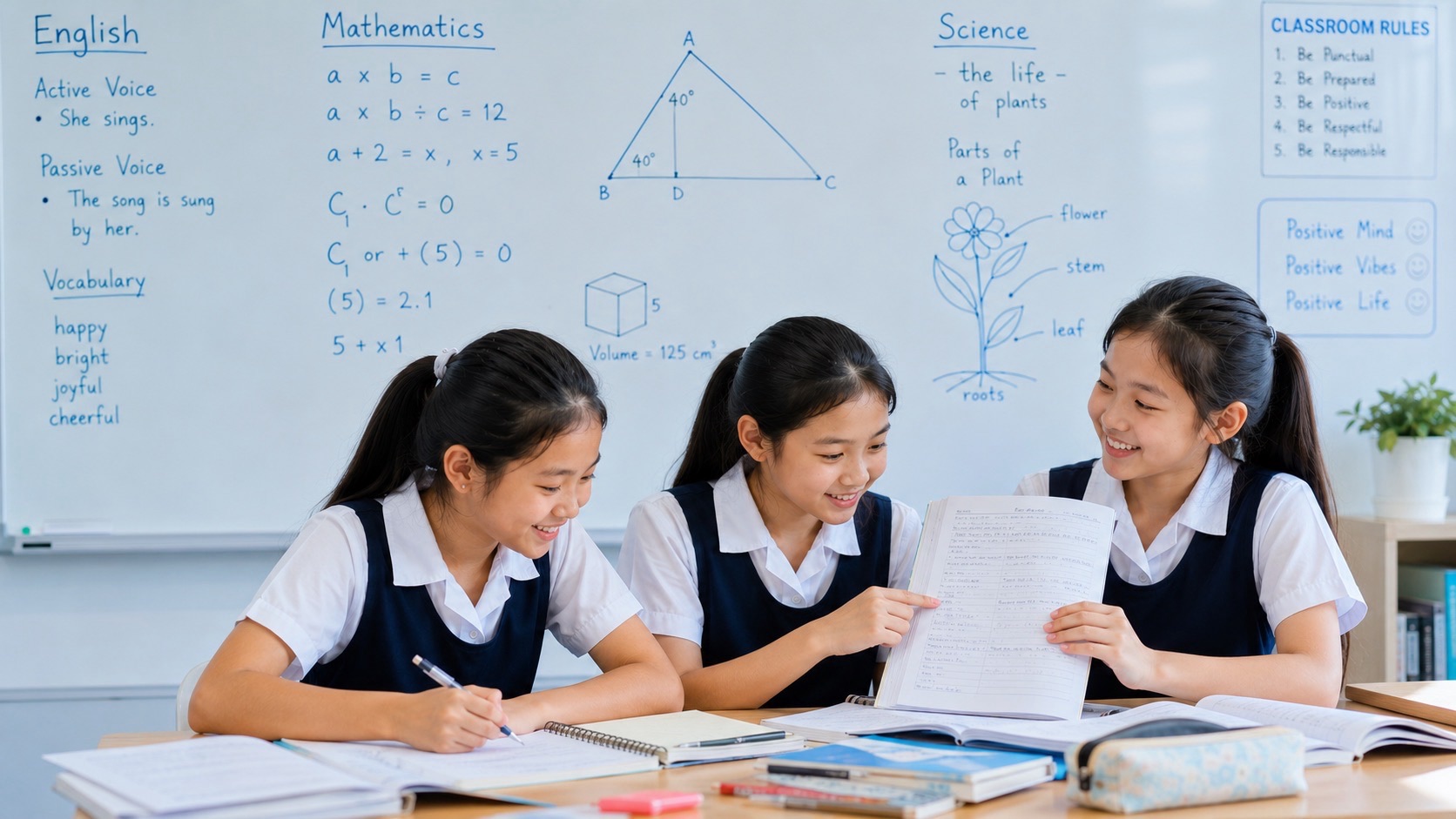
Google Classroom for students and parents is easiest to understand when we stop thinking of it as a pile of online homework. It is a workflow: the teacher assigns a task, the student reads the instructions, creates or attaches the work, submits it, receives feedback and uses that feedback to improve.
Parents searching for how to use Google Classroom, how to turn in an assignment, why homework is missing, or how parents can see Google Classroom often need help with one small but consequential step. The child may have completed the exercise but forgotten to submit it. Or the uploaded file may be the wrong version. Or the parent may expect access that Google Classroom does not provide.
This guide explains the actual steps, common misunderstandings and sensible home routines. It is written for families and students, including those in Singapore using school-managed Google services alongside the Ministry of Education’s Student Learning Space. The key principle is that digital organisation is a learnable skill, and it becomes easier when every step has a simple purpose.
Quick answer: In Google Classroom, students work from a class assignment, attach or complete the required material, use Turn in or Mark as done as appropriate, and check the resulting status and feedback. A completed document is not necessarily a submitted assignment. Parents may receive guardian summaries when the school enables that feature, but guardians do not automatically get full student-account access.
What Is Google Classroom? A Simple Explanation for Families
Google Classroom is a service for organising teaching, assignments, class communications and feedback. It connects classroom tasks with tools such as Google Docs, Slides, Forms and Drive files. The teacher creates the task; the student accesses the assigned work using the account and permissions defined by the school.
The student might be asked to read a text and answer questions, upload a photograph of handwritten workings, submit a short written explanation or complete an assigned Google document. The digital form varies. The responsibility remains the same: understand the task, do the work, and submit the correct evidence.
Online learning has two different forms of success. Academic success means the answer is thoughtful and correct. Workflow success means the right work reaches the right teacher in the required format, within the school’s instructions. One without the other creates avoidable problems.
A child can be excellent at Mathematics yet repeatedly lose track of attachments. Another child can submit perfectly organised files but misunderstand the actual concept. Good education helps with both problems while keeping them distinct.
Google Classroom and Singapore Student Learning Space Are Not the Same
In Singapore, the Singapore Student Learning Space (SLS) is MOE’s core digital teaching-and-learning platform. Its official information site describes curriculum-aligned resources, self-directed learning and tools to support teachers. Schools may also use Google Workspace services, including Classroom, through school-managed accounts, depending on the school.
Do not assume that because a student can log into SLS, the same page contains every Google Classroom task. Nor should parents assume every Singapore student uses Google Classroom in the same way. The actual platform, access method and required tasks are set by the school and teacher.
Some schools provide Student iCON or other school-managed Google credentials. If a child sees two different online portals, write down which one each subject teacher uses. The useful question is not “Which platform is better?” but “Where is this particular task assigned, submitted and returned?”
There is room for both. SLS provides a common MOE-aligned learning environment; a school may use other applications for communication or specific learning activities. The platforms serve educational purposes but are not interchangeable folders.
A simple family dashboard can include Subject, Teacher’s Platform, Due Date, Status and Next Action. If the school changes its instructions, update the dashboard rather than relying on memory.
Start With the Correct School Account
When a student says, “My work disappeared,” begin by checking which account is open. A device may store a parent’s personal Google account, the student’s private account and a school-managed Google Workspace account. The pages can look very similar while displaying entirely different classes and files.
- Open the Classroom page or app specified by the teacher.
- Check that the signed-in account is the student’s authorised school or class account.
- Choose the correct class and open its Classwork section or assigned task.
- Read the due date, full instructions, attachments and marking criteria if provided.
- If the class or file is missing, check with the teacher or school ICT support instead of making repeated random account changes.
Do not ask the student to share passwords in messages or with other pupils. Parents can support account recovery using the school’s approved route, but should avoid keeping passwords in easily shared screenshots.
A useful phrase for a child is: “First check the account, then check the class, then check the assignment.” It prevents a surprising number of mistakes that would otherwise appear to be lost homework.
The Assignment Journey: From Posted to Returned
1. The teacher assigns the work
The teacher creates an assignment with instructions and possibly a due date, files, a question, a Google Form or a rubric. A well-organised student reads all the conditions before opening the worksheet. A title such as “Science Homework” may not reveal that two files or a reflection are required.
2. The student opens and understands the task
The child should identify the product expected: a completed document, a photograph, a link, a response inside a form or an explanation in the submission area. Doing the wrong product correctly is still a submission problem.
3. The student creates or attaches the work
Depending on the assignment, a teacher may create an individual copy for each learner, supply a shared reference document or require an attachment from the student. A document intended for reading may not be editable. A student’s own copy must contain the completed answer before submission.
4. The student submits
The student uses the available submission control, which may be Turn in or Mark as done depending on the task. The student should inspect the actual work and the assignment status, not assume that closing the browser submitted everything.
5. The teacher reviews and returns
A teacher may review a submission, give a grade when grading is used, provide comments or return the work for improvements. Status labels can change as the assignment moves through this cycle. A returned item may still require the student to act.
6. The student reads the feedback and improves
The last step is a learning step. If a returned Mathematics response says “show how you formed the equation”, the child should revisit the reasoning, not merely admire the numerical score. The feedback should be converted into a concrete next action.
Turn In, Mark as Done and Unsubmit: Three Different Actions
Turn in generally submits the required work and may transfer editing control of attached school documents while the teacher reviews them. Mark as done indicates completion for tasks that use that control. Do not treat the two buttons as universally identical: the available action depends on the type of assignment and teacher setup.
Unsubmit reverses a previous submission so that the student can make changes. Google’s current Classroom guidance warns that work submitted or marked done after the due date can be recorded as late. Before un-submitting, check the date and the teacher’s instructions.
If an assignment is already late or the control is no longer available, the student should contact the teacher through the approved school channel rather than assuming the system can be bypassed. A missed button is a workflow error to repair, not a reason to conceal work.
A useful three-question check is: “Is the final answer actually inside the attached file? Is the correct file attached? Does the Classroom page show the status my teacher expects?”
The Most Common Problem: The Teacher Cannot See the Work
One of the most frustrating situations is when a child insists, correctly, “I already did the homework”, while the teacher sees nothing useful. Completion and submission are separate events. Even submission may not guarantee that the teacher can view the expected content.
The wrong file was attached
A student may attach an empty template, a document with last week’s answers or a photograph of an unrelated worksheet. A tiny filename difference can create a large practical problem. Open the attachment from the assignment page and verify its contents.
The file was completed in another account
A child may have written answers in a personal Drive document while the school Classroom expects an individual school-account copy. Simply seeing the file in one account does not mean the teacher can access it from another.
The sharing permission blocks the reader
A link can exist without granting access to the intended teacher. Google Classroom’s attachment behaviour depends on how a file was shared, copied and submitted. Do not solve the problem by making a child’s personal document public to everyone. Instead, use the teacher-specified attachment route or ask for the correct permission.
The work was never formally submitted
The child might finish a Google Doc and close the tab, assuming automatic saving also means automatic submission. Saving preserves edits. Submitting changes the assignment state. They are not the same operation.
The photograph is unreadable
An image may be technically attached but contain writing too small, out of focus, cut off or rotated sideways. Before uploading handwritten work, check that the entire page is legible, including question numbers, units and diagrams.
eduKateSG has a focused diagnostic article on this exact situation: Why Submitted Homework May Still Be Invisible to the Teacher — The Attachment-and-Access Test.
How Grades, Comments and Feedback Work
A returned assignment can carry several types of information. There may be a score, a general teacher comment, a note on a document or a private comment attached to the assignment. The student should not assume that the numerical mark contains everything worth learning.
Google’s teacher guidance describes status categories such as assigned, turned in, returned and graded. The precise interface can change over time, but the underlying sequence remains straightforward: give work, receive work, review work and communicate what comes next.
A child should read comments with two questions in mind: “What was successful?” and “What should change in the next attempt?” If a teacher says “use evidence from the passage”, the repair is to quote or paraphrase a relevant detail accurately, not to write longer answers indiscriminately.
A one-line correction log works well: “I lost marks because I stated a conclusion but did not explain the observation.” The next assignment should include a deliberate check for evidence before submission.
Private comments provide a way for teacher and student to discuss the assignment. They are not permission to disclose personal information or confidential details. Follow school communication rules, and remember that a school-managed account belongs within a managed educational environment.
What Parents Can—and Cannot—See
Parents understandably want to know whether homework has been assigned or forgotten. However, Google Classroom does not automatically give every guardian a student-equivalent login. That is an important boundary, not a defect.
Google’s official guardian guidance explains that eligible guardians of students using school-managed Google Workspace accounts may receive email summaries when the school or teacher has enabled and configured the feature. Summaries can include missing work, upcoming work and recent class activity. They do not include grades by default.
Some eligible Google Workspace for Education plans also provide limited guardian preview capabilities for Classwork. Availability depends on the school’s edition and settings. Parents should not assume they can browse the child’s Stream, People or full Grades pages.
If a family has never received an invitation, ask the school whether guardian summaries are enabled. Do not create an unofficial second student account or ask the child to share login credentials just to observe progress. A short scheduled review with the child can provide much of the benefit without weakening privacy.
Parents can help a child learn to read the workload, prioritise dates and check submission status. Over time, the child should take over the routine. The parent’s role shifts from operator to calm reviewer.
A Five-Minute Homework Submission Routine
- Minute 1: Open the right account and class. Read the instructions and due date.
- Minute 2: Inspect the finished document, image or answer. Make sure nothing is blank or missing.
- Minute 3: Check the filename, page order and attachment permissions where relevant.
- Minute 4: Submit using the correct control and confirm the status shown on the assignment.
- Minute 5: Record the next action: wait for feedback, revise returned work, or begin the next task.
This five-minute routine is not meant to add five minutes to every tiny task. It is a reusable checklist, especially for pupils who frequently finish work but fail to deliver it. Once the habit is stable, it becomes a much shorter mental sequence.
For larger assignments, keep a simple working file name that identifies subject, task and version. Avoid vague names such as “finalfinal2”. A good name might be “Sec1-Science-Heat-Answers-2026-10-17”. Use the naming system instructed by the teacher when one exists.
If the school requires multiple uploads, check every part separately. A beautifully completed first worksheet does not replace the photograph or reflection requested on the second page.
Eight Common Classroom Problems and Their Repairs
- Wrong account: the correct class seems missing. Repair by verifying the school’s assigned account before trying another link.
- Unclear instructions: the student cannot tell what to submit. Repair by identifying the output, format and deadline, then asking the teacher a precise question if needed.
- Blank copy: the attached document has no answers. Repair by opening the submitted attachment and comparing it with the student’s working copy.
- Failed permission: a teacher cannot open the link. Repair through the school’s intended share or attachment process, not a public link.
- Missing submission click: the document was saved but remains assigned. Repair by checking and completing the submission action.
- Late change: a student un-submits close to the deadline. Repair by checking timing before editing and contacting the teacher where necessary.
- Unread feedback: the child sees a grade but repeats the mistake. Repair with a short correction log and a fresh practice question.
- Parent dependency: an adult handles every upload. Repair by gradually transferring the checklist to the student.
Notice that these eight failures do not require eight new apps. Most are repaired by observing the route from instruction to answer to delivery to feedback. Digital confidence comes from understanding that route.
When the problem repeats, record which step fails most often. A child who always attaches the wrong version needs a file-selection habit. A child who misses deadlines needs a planning routine. A child who never reads comments needs a feedback routine. These are separate interventions.
Using Google Classroom for English Learning
For English, Classroom might hold reading passages, comprehension questions, oral presentations or composition drafts. The student should learn to treat submission as the last step in a reading-and-writing process, not its first.
Before uploading a composition, check the actual task: genre, audience, topic, word limit if any, file format and teacher-specific requirements. After writing, review paragraph structure, clarity, tense consistency and whether the story or argument answers the prompt.
If the teacher returns a draft with a comment such as “show, don’t tell”, do not blindly add adjectives to every sentence. Ask what event, behaviour or dialogue would help the reader understand the emotion. This is a language decision, not an upload decision.
See How PSLE English Composition Really Works and How Vocabulary Really Works for the learning underneath the document. Classroom can carry the work; it cannot replace the language thinking that makes the work good.
Using Google Classroom for Mathematics and Science
Mathematics creates a particular challenge for digital submissions because working matters. A photo showing only the final answer may be insufficient when the teacher needs to assess the method. Ensure the sequence of steps is visible, the equations are legible and necessary units are written.
Suppose a student solves 3(x + 2) = 18. Writing only x = 4 hides whether the learner correctly expanded, divided or guessed. A clear submission can show 3x + 6 = 18, then 3x = 12, then x = 4, with a substitution check if appropriate.
For Science, separate observation from explanation. If the task asks why a bulb lights when a circuit is closed, the learner should explain a complete conducting path for current rather than simply state that the bulb lights. If a diagram was required, upload it in a readable orientation.
Some tasks ask for an online quiz, a video or a collaborative file rather than a standard worksheet. The student must follow the teacher’s submission instructions for that particular task, including any confirmation or reflection.
The underlying teaching system is explained in Secondary 1 Mathematics — Structure and Working and How Primary Science Works. A correct upload does not replace a correct method.
Teach Student Responsibility, Not Parent Dependence
A younger child may need help remembering to open the assignment. That is normal. But if adults always rescue the login, choose the file, upload the answer and monitor every deadline, the child may never develop the routine independently.
Start with shared operation: parent and child inspect the task together. Then move to coached operation: the child handles the sequence while the parent watches. Finally, use an end-of-week review: the child shows what was assigned, submitted, returned and learnt.
The goal is not perfection on the first attempt. A student may forget once, repair the mistake and become more reliable. What matters is that the student understands the failure, creates a practical check and tries it again. That is more useful than repeated lectures about being careless.
Encourage honest communication with teachers. If a file cannot be opened or a submission was missed, the learner can briefly identify the assignment, describe the problem and ask for the correct route. Clear reporting is a valuable communication skill in school and adult work.
Privacy, Permissions and School Rules
A school assignment may contain names, student work, photographs, assessment material and private feedback. Students should not share these casually outside the intended class or use public access settings merely to make a broken link work.
Always follow the school’s policy on accounts, approved applications, screenshots and third-party AI tools. Do not upload a child’s personal data or school-confidential document into an unrelated service simply because it offers easy file conversion or homework help.
Use official school recovery procedures for account access. A parent helping with homework may be authorised to view some materials but is not automatically entitled to other pupils’ work or to the teacher’s full internal grading records.
Privacy is compatible with learning. A student can show a tutor a carefully selected question or screenshot with identifying details omitted if the school’s rules allow it. The tutor usually needs the learning gap, not the entire school account.
What Tutors Can Learn Without Accessing a School Account
A good tutor does not need to log into a pupil’s private Classroom to support the child. The student or parent can describe the assignment, show the relevant permitted work and explain the feedback received. The tutor can then focus on the first academic error.
If the teacher wrote “explain your evidence”, the tutor can model how a claim links to a quotation. If the teacher wrote “show the calculation”, the tutor can check which algebra step disappeared. If the problem was simply an unreadable upload, the child needs a submission checklist, not another hour of content practice.
There is a useful division of responsibility: school sets the task and official submission route; the student performs and submits; parents support routines; tutors repair understanding where needed. Clear boundaries protect everyone and help the learner become independent.
This approach fits FENCE Education Architecture: diagnose the actual failure point rather than assuming every disappointing outcome has the same cause.
Frequently Asked Questions
Can parents directly log in to Google Classroom?
A guardian does not automatically receive a student-equivalent Classroom account. Eligible schools can configure guardian email summaries, and some editions offer restricted previews. Ask the school which options it enables.
Does saving a Google Doc mean the assignment is submitted?
No. Saving the document and submitting the assignment are distinct actions. Always confirm the assignment status or the teacher’s required submission flow.
What is the difference between Turn in and Mark as done?
Both relate to completing work, but which control appears depends on the assignment and its attachments. Use the control shown for that task and verify the result rather than substituting one action blindly for another.
Can I edit homework after turning it in?
Often students can unsubmit before the relevant deadline, change their work and submit again. The school’s settings and timing matter. Follow the official instructions and do not risk a late flag without checking.
Why can I see my file but the teacher cannot?
Possible causes include the wrong attachment, an empty template, another account’s file, missing permissions or a task not formally submitted. Check the submission route step by step.
Do guardian email summaries show grades?
Google says guardian email summaries do not ordinarily include grades. For assessment results, follow the teacher’s or school’s approved communication process.
Is Google Classroom the same as SLS in Singapore?
No. Singapore’s Student Learning Space is MOE’s core teaching-and-learning platform. A school may also use Google Workspace and Classroom, depending on the school’s setup.
How can students avoid forgetting assignments?
Use a five-minute task review, a simple due-date tracker and a final status check. Build the routine until the student can complete it without a parent operating every step.
What should a child do after the teacher returns homework?
Read the feedback, identify the change requested and practise the same underlying skill in a fresh task. A returned assignment is an opportunity for learning, not merely a closed folder.
Official Sources and eduKateSG Learning Routes
- Google Classroom Help — Turn In an Assignment
- Google Classroom Help — How Attachments Are Shared
- Google Classroom Help — Grade, Assess and Provide Feedback
- Google Classroom Help — Guardian Email Summaries
- Singapore Student Learning Space — Official MOE Overview
- eduKateSG — Why Submitted Homework May Be Invisible
- eduKateSG — FENCE Education Architecture
- eduKateSG — How Education Works
The habit worth keeping: read the task, do the thinking, check the evidence, submit the correct work and learn from the feedback. Once students understand that route, Google Classroom becomes much less mysterious—and homework becomes another opportunity to build personal responsibility.