
HOW SINGAPORE EDUCATION WORKS · Adult online-learning audio
Find your next learning step
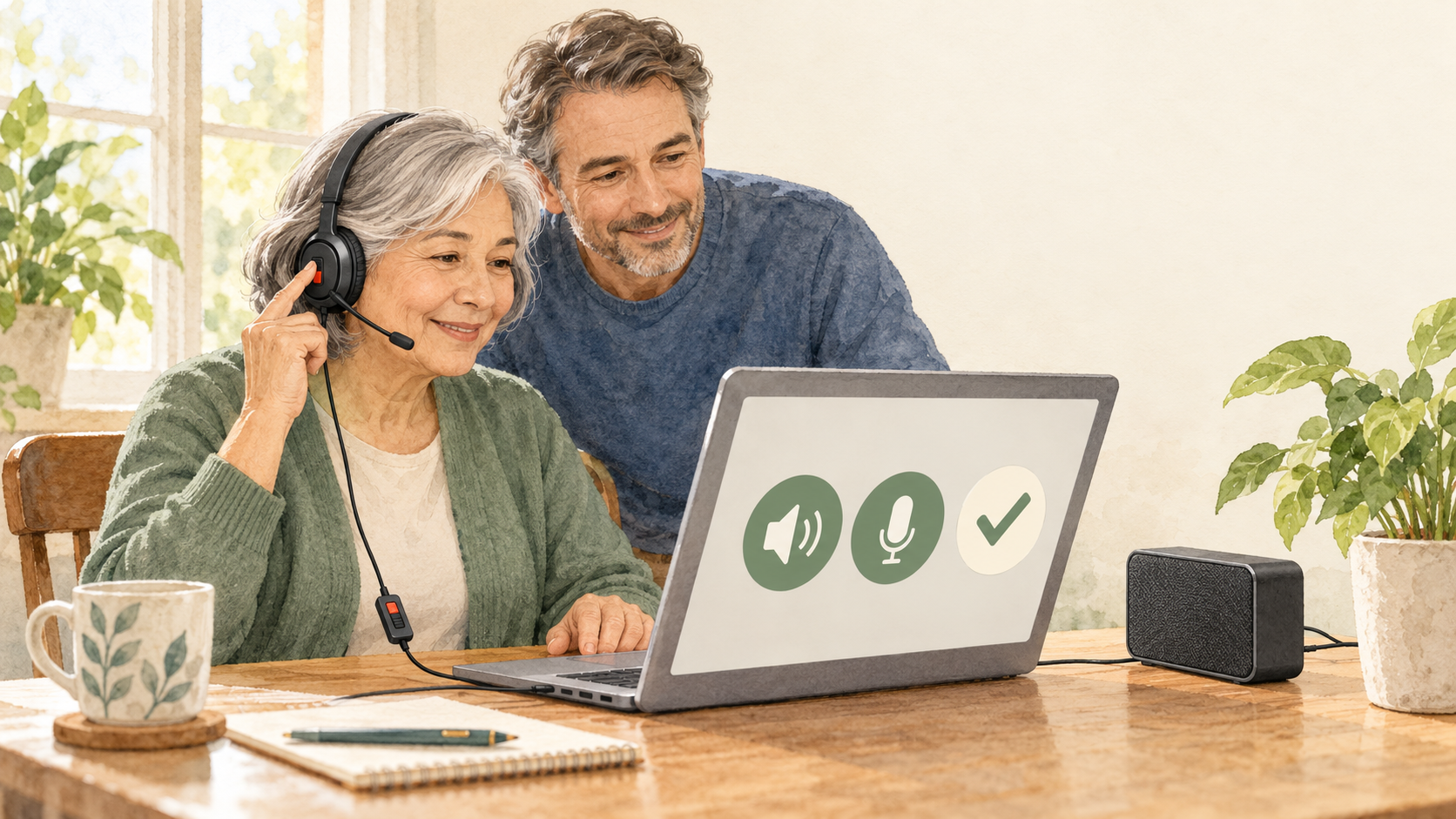
Test output and input separately: play a known sound through the intended speaker, record or use the meeting app’s microphone test, replay it, and confirm the app has permission to use the selected devices.
Full chapter index · Practice and checking · Sources and next reading · How Singapore Education Works
“No sound” can describe different failures. You might not hear the class, the class might not hear you, or the wrong headset might be selected. A short directional check turns a vague problem into a repairable one.
This is a learning and troubleshooting routine, not a guarantee for every device or platform. Menus differ across operating systems and meeting apps. Follow the provider’s current instructions and your organisation’s privacy and security requirements.
The choices at a glance
| What you notice | Likely issue | Useful next move |
|---|---|---|
| You hear others but they cannot hear you | Output works; input path may not | Check mute, microphone choice, permission and input level |
| Others hear you but you hear nothing | Input works; output path may not | Check speaker choice, volume and connected headphones |
| Audio works in one app only | Device hardware may be fine | Compare app permissions and selected devices |
Full chapter index
Understand the task
Work and diagnose
Repair and practise
Recall, transfer and questions
Output travels from the class or test sound to your ears through speakers or headphones. Input travels from your voice through a microphone into the app. One direction can work while the other fails.
Name the symptom precisely: “I can hear the test sound but the recording is silent” is more useful than “audio is broken”. It tells you to inspect the input path.
A camera is not required for this diagnosis. Keep the test brief and avoid recording private conversation or personal information.
Laptops may expose built-in speakers, monitor audio, Bluetooth earbuds and USB headsets at the same time. Select the intended output and input explicitly in the meeting app or operating-system settings.
A device name is only a label. Confirm it by playing a known sound and speaking into the intended microphone. Bluetooth devices may expose different modes for listening and calls.
Start with a simple configuration. Disconnect unused audio devices temporarily if that is safe and permitted, then add them back after the basic path works.
Assumptions: the learner hears a meeting test sound through wired headphones, the app shows the correct headphones as output, but a test recording contains silence.
Because output is proven, do not keep adjusting the speaker volume. Check physical and in-app mute, select the headset microphone rather than the laptop microphone, grant the app microphone permission, then watch the input-level meter while speaking.
Checked answer: after selecting the headset microphone, the meter moves and the recorded sentence replays clearly. Both directions are now independently verified. If the meter remains still, try the built-in microphone or the provider’s official troubleshooting route.
Begin with physical controls: cable seating, headset switch, keyboard mute key and volume. Then check operating-system device selection and permission. Finally check the meeting app’s device choice.
Change one layer and retest. If you change five settings at once, a temporary success will not tell you what repaired the path.
Use a second app only as a comparison. If the microphone records correctly elsewhere, the meeting app’s selection or permission is more likely than complete hardware failure.
For feedback or echo, use headphones, lower speaker volume and avoid running the same meeting audio on two nearby devices. Mute when not speaking if the class asks, but remember that mute is a control, not a repair for a missing input device.
For unstable wireless audio, move closer to the paired device, check battery level or use a permitted wired alternative. Do not install unapproved drivers or remote-control software during a class.
If an organisation-managed device blocks permissions, contact its authorised support route. Do not bypass controls that may protect other users or data.
For guided practice, point to the output device, play a known test sound, point to the input device, record one neutral sentence and replay it. State which direction each step proves.
For independent practice, the learner completes a five-minute check before a mock class: connect, select output, select input, test both, then join muted if appropriate. They record only the device names and result, not private audio.
Check independence with a changed symptom: “They hear you, but you cannot hear them.” The learner should choose output checks rather than repeat the microphone test.
The next day, ask the learner to sketch two arrows from memory: app to ears, voice to app. Under each arrow, list one device choice, one permission or control and one test.
Transfer the method from a laptop to a phone, library learning booth or workplace headset. Labels and menus change, but the direction-first diagnosis remains.
Global connection: online classes connect people across countries, accents, devices and time zones. A neutral pre-class test reduces avoidable interruption while accessibility needs, local policies and platform features still require individual arrangements.
These answers support basic self-checking; they do not replace accessibility or technical support.
Should I join the real class to test?
Use the platform’s test call or a private practice meeting where available. Avoid disrupting a live session.
Why does the microphone work in one app but not another?
Apps can have separate device selections and permissions. Compare those settings before assuming the microphone is faulty.
Does moving the volume slider test the microphone?
No. Speaker volume controls output. Test microphone input with a meter or recording.
What if I use hearing-assistance technology?
Keep the approved accessibility setup and follow the device, platform or institution’s support guidance. Do not replace it with a generic configuration.
Sources and next reading
Microsoft Support: speaker troubleshooting in Teams — official output-device checks and test-call guidance.
Microsoft Support: microphone troubleshooting in Teams — official input, permission and device checks.
Microsoft Support: manage device settings in Teams — official guidance for selecting speakers, microphones and cameras.
Adult calendar invitations and time zones — a related pre-class coordination guide.
Adult digital skills — a wider route for purposeful, safe technology learning.
Continue learning across stages
Continue with another reader job in this new batch. Each guide has its own worked case, diagnostic route and limits.
Kindergarten Fair Sharing: One Each, Leftovers and a Recheck
School Textbook Navigation: Contents, Index and Glossary
University Research Files: Name Versions, Keep One Master and Hand Over Clearly