
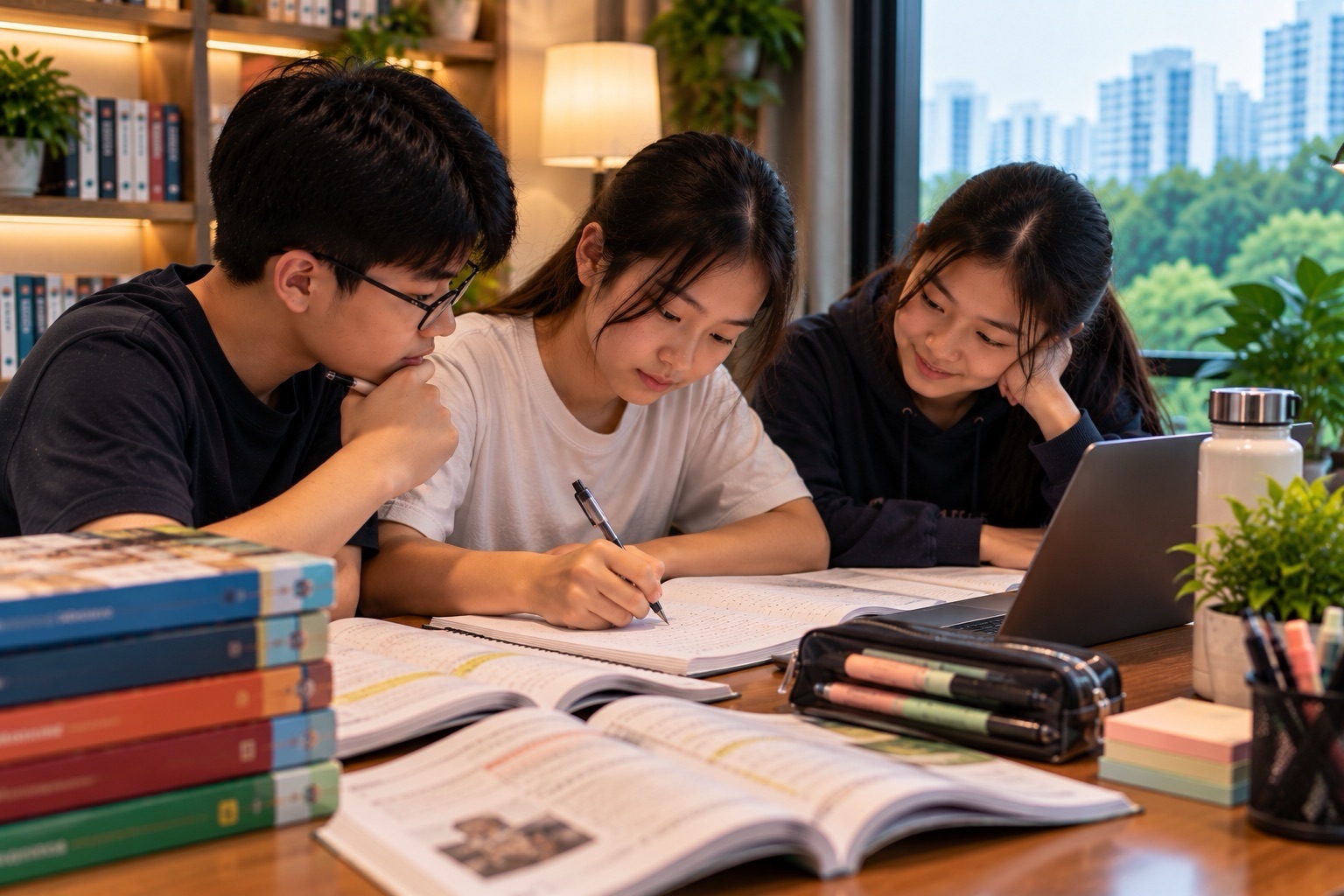
Zoom for students can make an online class feel nearly as immediate as a classroom lesson. A pupil sees the teacher’s diagram, asks why an equation has changed, watches a Science demonstration and responds to a question. For families, the essential challenges are practical: join the right meeting, hear and be heard, participate safely and make sure the actual learning survives when the call ends.
Parents searching for Zoom for students, how to join a Zoom class, Zoom meeting without account for children, Zoom classroom safety, or Zoom online tuition need clear guidance about the 2026 account rules and what each classroom feature is meant to accomplish.
This guide covers joining meetings, the waiting room, audio, chat, screen sharing, breakout rooms, captions, teacher controls, recording consent and real learning routines for Singapore Primary and Secondary English, Mathematics and Science.
Quick answer: Zoom supports online lessons through meetings with audio, video and authorised participation tools. Its official K–12 educator guide states that Primary and Secondary pupils should not independently create Zoom accounts, and users under sixteen cannot create personal Zoom accounts. Schools can use suitable external authentication or authorised meeting links for student participation without individual pupil accounts. A successful class follows prepare → join securely → think and participate → record the first misconception → practise independently afterward.
What Is Zoom for Education?
Zoom is a communications platform that can host live educational meetings. A teacher may present a slide, share part of the screen, ask questions, use small group discussions or provide oral feedback.
The official Zoom parent and student guide provides advice about joining, classroom features, accessible participation, security and parent support.
It is important to distinguish a live lesson from a digital homework platform. Zoom carries a conversation. It does not necessarily store all assigned files, formally submit homework or maintain a school’s academic assessment record.
A learner might use Zoom for explanation, Microsoft Word for a composition and the school’s prescribed system for turning in the work. These are separate functions.
The true benefit of a live online lesson is that a teacher can respond to the student’s thinking in the moment. The software cannot guarantee that attention or understanding happened.
Can Students Join Without a Zoom Account?
Yes, under appropriate meeting configurations. Zoom’s meeting-joining guidance explains that participants can join a host’s meeting through an invitation link, meeting ID or compatible web and app interfaces without necessarily having a Zoom account.
For schools, the external-authentication FAQ describes an approved arrangement where pupils authenticate using school identity systems without creating separate Zoom accounts.
The exact joining route depends on the teacher and the school’s security settings. Some meetings allow simple guest access; others require school sign-on or restrict visitors to an authorised domain.
A student who encounters an authentication requirement should not use another person’s account to bypass it. Ask for the school’s correct joining instructions.
A functioning link is not always sufficient. The host may have enabled a waiting room, passcode or access rules that need to be satisfied.
Age Rules: Why Under-Sixteen Students Should Not Sign Up
Zoom’s official account-age explanation states that users under sixteen cannot independently create a Zoom account.
Its education guide expressly tells schools that K–12, Primary and Secondary pupils should not create their own personal Zoom accounts. School-managed external authentication is intended to provide access without forcing children into inappropriate personal sign-up flows.
This matters for a Singapore Primary learner joining a lesson from home. The correct action may be simply following the authorised teacher link and school authentication, not registering a profile with a false age.
Parents should avoid supplying another adult’s personal credentials to a child as a workaround. Account ownership and school access arrangements exist for safety and accountability.
For older learners, a personal account may be permissible under the applicable terms, but school lessons should still follow the school’s preferred identity and privacy policy.
Age eligibility is a product rule; academic ability is a separate matter.
How to Join a Scheduled Lesson
Begin with the exact link or meeting ID sent by the teacher through an approved channel. Do not trust a similarly named public link found by searching the internet.
Zoom’s joining instructions describe opening the invitation, launching the supported app or joining through a compatible browser where permitted, checking microphone and camera settings, and entering the meeting or waiting room.
Before entering, confirm the class, scheduled time and displayed name under the school’s instructions. Use the permitted student identifier rather than adding unnecessary personal details.
If the meeting requires a passcode, use the passcode supplied by the host. Avoid posting codes in public chat groups or forwarding them to people not invited.
If a waiting room appears, remain there until the teacher admits the participant. A waiting room is not proof that the link is broken.
After joining, check that the student can hear the lesson before beginning any academic task.
The Waiting Room Is a Safety Feature
A waiting room gives the meeting host a way to decide who should enter. It can reduce accidental or unauthorised participation when appropriately configured.
A pupil may arrive early and see a message indicating that the host will admit them. That is a normal part of some lesson setups.
If the student cannot enter after the scheduled time, check the correct meeting link, class date and teacher announcement. Do not join an unrelated meeting or circulate the link broadly to ask for help.
The teacher may use additional authentication controls, a passcode or other security settings. These are not obstacles to be bypassed; they help protect pupils and the lesson.
Parents can support younger children by confirming that they are in the intended waiting room while leaving the actual class participation to the learner.
A secure online classroom begins with knowing who is present.
Microphone, Camera and Audio Checks
Audio problems can make a strong lesson ineffective. A student may hear the teacher but have no working microphone, or the teacher may hear noise instead of a clear question.
The Zoom parent guide recommends checking connectivity, using a suitable workspace and reducing background noise where possible.
Join a little before the scheduled start when allowed, then check the selected microphone, speaker or headphones. A headset may help where the home environment is noisy, but it is not mandatory for every family.
Follow the teacher’s camera and microphone rules. A camera-off setting may be appropriate in some situations; another school task may require visible oral presentation.
If the connection freezes, inform the teacher through the permitted route when possible rather than repeatedly disconnecting without explanation.
Access conditions should be addressed as technical matters, not immediately interpreted as lack of effort or subject ability.
Ask a Precise Question During a Live Lesson
A student who says “I don’t understand Maths” may be describing a real problem, but the teacher still has to locate the missing idea.
A stronger online question is: Why does 3(x + 2) become 3x + 6 rather than 3x + 2?
Now the teacher can address the distributive property directly. Three groups of x + 2 contain three x terms and three groups of two.
For English, a helpful question might be: Which phrase in the passage supports that inference?
For Science: Does opening the switch remove the battery’s energy, or does it break the conducting path?
The ability to describe the first uncertain step is itself a learning skill. Zoom provides the channel; the student learns to communicate uncertainty precisely.
A good class gives pupils opportunities to ask and answer such questions rather than listen passively throughout.
Worked Mathematics Example: Show the First Wrong Step
Imagine the teacher presents the equation 4(x + 3) = 28.
One student divides both sides by four to get x + 3 = 7, then subtracts three to find x = 4. Another expands correctly to 4x + 12 = 28, leading to 4x = 16 and x = 4.
A third learner writes 4x + 3 = 28. The teacher can highlight the first incorrect line and ask why the constant term was not multiplied.
A useful live response is not simply giving x = 4. It is explaining that multiplication by four applies to the entire bracket.
After the explanation, ask students to solve 3(x + 5) = 24 on paper, without copying the screen. The correct result is x = 3.
The teacher can inspect the child’s own method rather than only read a typed answer in the chat.
Independent application after the call is the evidence worth retaining.
Worked English Example: Support an Inference
A teacher shares this invented passage: Maya stared at the unopened envelope, slipped it into her bag and changed the subject.
The class is asked what the actions might suggest.
A reasonable inference is that Maya hesitates to discuss the envelope. But the text does not establish that she knows its contents or that the message is necessarily bad.
In an online conversation, ask pupils to identify the verbs and explain their significance. A student should say This suggests or It may indicate when the evidence supports a possibility rather than a certainty.
A learner typing only She is angry has not yet linked the claim to evidence. The teacher can ask what exact phrase proves that emotion and whether another interpretation is possible.
After the class, give a fresh paragraph and request an independently justified inference.
Zoom helps make the debate immediate; the academic skill is reading discipline.
Worked Science Example: Condensation
A teacher shows a cold cup with droplets forming on the outside in humid air.
The pupil’s observation is that liquid droplets are visible on the external surface. A scientifically suitable explanation is that water vapour in the surrounding air cools sufficiently near the surface and condenses into liquid droplets.
A learner may suggest that the cup leaks water or that the cold creates the water. The teacher can use a diagram and questions to repair the misconception.
Ask Where is the source of water? Which change of state occurs? The correct explanation needs both components.
Now change the scenario: a bathroom mirror becomes misty after a hot shower. The student should use the same condensation concept without the earlier picture.
This example shows why video calls can support learning only when pupils actively explain and test ideas.
For broader content, see How Primary Science Works.
Screen Sharing: Helpful but Not a Submission Record
A teacher may use screen sharing to display a worksheet, slide, equation or model. A pupil may be permitted to share their work for feedback, depending on the host’s settings.
Before sharing, close private messages and unrelated tabs. Avoid exposing student names, account credentials, personal photographs or confidential files.
When a teacher shares a model answer, copying it does not prove the pupil can reproduce the reasoning independently. Use a short note to record the key principle and then apply it to a changed question.
A screen-shared file is not necessarily the official homework submission. The school may require work through SLS, Google Classroom, Teams or another designated system.
After the meeting, check the formal task instructions and file format separately.
The live lesson should clarify the work; it should not create uncertainty about where the work belongs.
Zoom Chat: Ask Questions, Not Publish Private Data
The in-meeting chat can help learners ask questions or provide short answers. It may be useful when pupils are hesitant to interrupt verbally.
However, chat visibility depends on host settings. A message may be sent to everyone, to an approved recipient or be limited by classroom controls.
Before sharing, check who will see it. A pupil should not post their phone number, private address, password or another student’s assessment results.
An academic response should be specific. I chose 20 because I calculated the perimeter, but the question asked for area is more informative than simply posting wrong.
Schools may restrict file sending or private messages as part of the learning environment. Follow those rules rather than trying to bypass them.
A class chat is part of the school’s communication space, not an unrestricted public social network.
Breakout Rooms and Small-Group Thinking
Zoom’s breakout-room help describes dividing a meeting into smaller discussion groups under host control.
Small groups can help students explain their ideas rather than remain silent in a large session.
For a three-student Mathematics discussion, one learner can propose the method, another check the algebra and a third explain why the units or conditions are valid.
Rotate roles so that one confident pupil does not perform every intellectual step. Have everyone attempt the question independently before comparing answers.
The host may be able to join rooms, assign participants or adjust settings, depending on the account and device. Some features differ on mobile from desktop.
For safeguarding, follow the school’s group supervision and chat rules.
The lesson is successful if each learner can solve a new problem afterward, not merely if everyone spent ten minutes in a separate room.
Whiteboards, Annotations and Visual Learning
Shared whiteboards or annotation controls may help a teacher demonstrate a geometry construction, mark a passage or show the stages of a Science process where supported and enabled.
A student might draw a line around a rectangle to distinguish perimeter from its shaded interior area. A diagram can connect a formula with the quantity being measured.
But the teacher should make the student explain the representation. Merely drawing in the right colour is not proof that the formula is understood.
If a device does not support a particular annotation option, a paper sketch held up to the camera can sometimes provide an alternative when the teacher permits it.
Choose the visual tool that supports the learning objective and account settings.
A good online class does not need every interactive feature enabled simultaneously.
Captions and Accessibility in 2026
Zoom offers captions and some transcription features, subject to host, account and meeting settings.
Its current caption-saving guidance states that since 18 May 2026 users can no longer save or download live closed captions in the old way. Captions remain available during meetings and in certain playback contexts, while retaining speech-to-text data requires appropriate Meeting transcripts functionality and permission.
Do not promise a child that they can always download a complete caption file after an online class. Ask the teacher or school what resources are approved for review.
Live captions can contain mistakes, especially in technical vocabulary, names and Mathematics expressions. A student who sees x minus two transcribed incorrectly should check the original written equation.
Accessibility should provide a route into the lesson, not introduce a new source of unchecked errors.
Where captions are unavailable, discuss suitable alternatives with the school.
Recording a Lesson Requires Permission
A Zoom meeting can contain students’ voices, faces, names, screens and private school information. Recording may be controlled by the host and the institution’s policies.
Students should not record or redistribute classmates’ participation without the necessary school and participant authorisation.
An adult may wish to preserve a tutor’s explanation for later revision. Even then, check the agreed recording policy, who may access the file and how long it may be retained.
A recording is also not guaranteed to include every breakout-room conversation or on-screen resource. Zoom’s breakout-room documentation distinguishes main-meeting cloud recording from breakout recording behaviour.
For routine revision, a short student-written summary with a corrected example may be safer and more educational than retaining a long audiovisual file.
The purpose of recorded media should be clear before anyone presses Record.
What Parents Can Do Before an Online Class
A few small preparations improve the chances of meaningful participation.
Confirm the meeting time and teacher link. Charge the device, test audio and prepare the correct textbook or worksheet. Choose a reasonably quiet place with limited distractions where possible.
The Zoom parent and student guidance also discusses connectivity and background privacy. If a family shares a room, a permitted virtual background or camera arrangement may help, though supported options depend on the device.
Do not make the child feel that a less elaborate home setup is evidence of weaker learning. The essentials are access, safety, engagement and adequate opportunity to communicate.
For younger students, help with technical setup, then let the child answer the teacher’s academic questions.
After class, ask what was learnt and which question remains difficult.
Online Tuition: What Makes a Good Lesson?
A good online tuition lesson should diagnose a learning problem, explain it, give the child a chance to attempt a new example and check the result.
A weak session may consist mainly of the tutor speaking while the pupil watches a screen. That can feel productive because many solutions were shown, but the student’s own decision-making may have been minimal.
For Mathematics, ask the learner to write the first step before the tutor reveals the method. For Science, ask for a causal explanation. For English, ask which words in the passage support an inference.
The tutor can use Zoom to observe and provide immediate feedback, but the learning method matters more than whether the platform has a sophisticated background or annotation feature.
A short independent post-lesson exercise helps establish whether the child can use the idea without live assistance.
This same principle informs eduKateSG’s Secondary 1 Mathematics small-group approach.
Zoom Versus Teams and Google Meet
Microsoft Teams for Students combines communication, meetings and additional class-workflow capabilities under suitable school arrangements.
Zoom is particularly associated with meetings, live participation and virtual-room controls. Google Meet offers another video-conferencing route in Google’s ecosystem.
A school may prescribe one service for official learning, while a separate tutor uses another for authorised sessions. The child should not assume that a file shown in a Zoom meeting automatically appears in a Teams assignment.
The correct choice is usually the approved platform that the student can use safely and reliably, rather than switching services simply for novelty.
Academic accuracy, subject feedback and independent practice matter across all meeting software.
A Twenty-Minute Active Online Learning Routine
For a short guided online revision period, try:
- Minutes 1–3: Confirm the topic, materials and first question.
- Minutes 4–7: Attempt the question before seeing the worked answer.
- Minutes 8–11: Compare methods and identify the first incorrect step.
- Minutes 12–15: Ask or answer one precise explanatory question.
- Minutes 16–18: Solve a new related task while the teacher observes the reasoning.
- Minutes 19–20: State the corrected principle and the next independent practice action.
For longer lessons, repeat the sequence with appropriate breaks and varied task difficulty.
A child’s completed meeting attendance is a workflow outcome. The stronger academic outcome is a correct explanation or new independent solution.
If a student cannot perform the final task, record the weak concept rather than simply adding more meeting time.
Common Zoom Classroom Problems
The link does not open. Check the original teacher invitation, meeting ID, passcode, browser or app setup; use the official join troubleshooting guidance.
The student is waiting for admission. A waiting room may be operating. Confirm the correct session rather than creating a new unrelated meeting.
An under-sixteen child sees an account-sign-up error. Do not create a false-age account. Follow the school-approved meeting or external-authentication route.
The teacher cannot hear the pupil. Check microphone permission, selected device and mute state.
The pupil cannot see shared material clearly. Ask for permitted notes, a larger screen or an accessible format.
Live captions appear incorrect. Check the original spoken and written terms; do not treat automatic transcripts as error-free.
An online task is not marked submitted. Follow the school’s actual learning-management workflow.
The lesson ends without independent understanding. Revisit the first misconception and attempt a changed question on paper.
Each issue needs a targeted repair, not a generic recommendation to spend longer on screen.
Frequently Asked Questions
Do Primary students need a Zoom account?
Not necessarily. School-managed external authentication or authorised joining can allow students to attend without personal Zoom accounts. Zoom’s education guidance says K–12 pupils should not independently register.
What is the minimum age to create a Zoom account?
Zoom’s official help states that users under sixteen cannot create a personal account. School-provided access can use separate approved authentication arrangements.
Can a student join from a browser?
Yes, under suitable meeting and browser settings. The host may enforce authentication or other restrictions.
What is a waiting room?
It is a host-controlled meeting entry stage. Being in the waiting room does not necessarily mean the link has failed.
Can teachers use breakout rooms?
Yes, with supported accounts and configurations. The host controls participation, and students can join discussions without all having independent Zoom accounts.
Can students download live captions after class?
Not through the former caption-saving workflow. Since May 2026, retaining speech-to-text content requires suitable transcript features and permissions.
Does Zoom automatically submit homework?
No. Students must follow the school’s separate assignment and submission procedures.
Is Zoom better than physical tuition?
It depends on the learner, lesson design and access conditions. Effective teaching still requires diagnosis, explanation, feedback and independent application.
How can parents know the lesson helped?
Ask the child to explain one corrected concept and solve a changed question after leaving the meeting.
Official Sources and eduKateSG Learning Routes
- Zoom — Parent and Student Guide to Online Learning
- Zoom — K–12 Educator Guide and Age Rules
- Zoom Support — Join a Meeting
- Zoom Support — Account Age Eligibility
- Zoom Support — External Authentication for Schools
- Zoom Support — Breakout Rooms
- Zoom Support — Closed Caption Saving Rules, May 2026
- Zoom — Children’s Educational Privacy Statement
- eduKateSG — Microsoft Teams for Students
- eduKateSG — SLS Login and Assignment Guide
- eduKateSG — Secondary 1 Mathematics Tutor Clementi
- eduKateSG — How Primary Science Works
The lasting lesson: Zoom can carry a helpful live explanation from teacher to pupil. Learning becomes dependable when the pupil can ask a precise question, work through the first mistake and solve a different problem when the call is over.