
Be Internet Awesome and Interland for Students | Online Safety, Privacy and Critical Thinking
Be Internet Awesome helps children practise decisions they may encounter online: whether to share a photograph, trust a message, protect an account, respond to unkind behaviour or seek help. Its Interland game turns those decisions into short challenges. The skills can matter as much as knowing where to click in a school learning platform.
But a child who finishes a digital-safety game may still need help recognising a convincing phishing message or asking permission before posting a friend’s photograph. A successful game score is not proof that every real situation will be handled correctly.
Parents searching for Be Internet Awesome for students, Interland Google game, Google internet safety for kids, online safety lessons, or digital citizenship for Primary school need a clear explanation of the activities, age suitability, privacy and how to connect the game with real-life judgement.
Quick answer: Be Internet Awesome is Google’s free digital-safety education programme. Interland teaches skills through four browser games—Reality River, Mindful Mountain, Kind Kingdom and Tower of Treasure. The official FAQ says no login or personal information is required and the games are particularly popular with ages 7–12. The wider curriculum has five foundations: Be Internet Smart, Alert, Strong, Kind and Brave. The strongest learning method is identify the risk → explain the decision → practise a changed scenario → know when to ask a trusted adult.
What Is Be Internet Awesome?
Be Internet Awesome is an educational initiative focused on children’s safe, responsible and confident use of the internet.
Its official educator page provides activities and classroom materials about privacy, information credibility, account security, respect and seeking help.
A child may already know how to open a school worksheet or join a video call without understanding the implications of publishing a personal photograph or forwarding a suspicious link.
Digital literacy requires more than technical ability. Students need to evaluate consequences, distinguish trusted from untrusted messages and recognise that their actions can affect other people.
The game provides a starting point for discussion, while families and schools provide the context for real behaviour.
A useful lesson ends when the child can explain why an action is safe or unsafe, not simply when the game announces success.
Is Interland Really Free?
The official Be Internet Awesome FAQ states that all its main educational resources are free and that no sign-in is required for Interland or the accompanying materials.
A child can open the game in a supported browser without creating an account or providing a personal email address.
The FAQ also says Interland works across suitable desktops, laptops, tablets and mobile devices with internet access.
This is useful for school lessons because an educator does not need to collect new student profiles solely for the exercise.
Do not confuse Interland with an unrelated website asking for a child’s password or date of birth. The legitimate game is reached through Google’s published Be Internet Awesome domain.
The free curriculum does not make every external site reached during another browsing session safe.
The goal is practising judgement that carries beyond the game.
The Five Foundations of Digital Citizenship
Google’s curriculum identifies five principles.
Be Internet Smart — Share with Care: think about what should be posted and who might see it.
Be Internet Alert — Don’t Fall for Fake: question suspicious information and distinguish credible evidence from deception.
Be Internet Strong — Secure Your Secrets: protect accounts and sensitive information.
Be Internet Kind — It’s Cool to Be Kind: treat others respectfully and respond constructively to unkind behaviour.
Be Internet Brave — When in Doubt, Talk It Out: seek help when something feels wrong, confusing or unsafe.
The official educator curriculum provides lesson plans, worksheets and guidance for these topics.
The five principles overlap. A fake message can threaten private information; an unkind post can become a reporting issue.
Real digital decisions often require using several of the principles at once.
Why Four Game Areas Teach Five Principles
Interland uses four distinct game areas for core challenges: Reality River, Mindful Mountain, Kind Kingdom and Tower of Treasure.
Reality River focuses on recognising deception. Mindful Mountain concerns sharing information deliberately. Kind Kingdom focuses on respectful online behaviour. Tower of Treasure supports account security.
The fifth principle—being brave enough to seek help—is taught throughout the broader curriculum rather than requiring a fifth separate island.
This distinction is explained in the official Interland FAQ.
A child who has visited all four lands should not conclude there are only four digital-safety skills.
Asking a trusted adult or using a proper reporting route can be the right next action in any of the scenarios.
The game world is an introduction to decisions, not a complete model of every internet risk.
Reality River: Don’t Fall for Fake
Reality River presents decisions about whether information or an online interaction should be trusted.
A child may encounter a message that appears to come from a friend, school or familiar organisation but has unusual wording or asks for personal information.
The first skill is slowing down before acting. Do not click a link merely because it contains an urgent instruction or resembles a recognisable logo.
Ask the student to identify what is actually known. Who sent the message? Is the sender’s address credible? Is the request expected? Can it be verified through a separate official channel?
A suspicious message does not become trustworthy because it says URGENT in capital letters.
The strongest child response may be to stop and show a parent or teacher.
No school activity should require the pupil to share a password in response to an unexpected message.
Worked Example 1: A Fake School Notice
Imagine a fictional message appears on a child’s device:
“Your school account will close in ten minutes. Open this unfamiliar link and enter your password immediately.”
The message uses urgency and threatens an unwanted consequence. It asks for a secret credential through a link whose authenticity has not been established.
A safe response is not to open the suspicious link or enter a password.
Instead, use a separate official school channel or ask the teacher or parent to verify whether any real account action is required.
The learner should explain why a message can be suspicious even if it contains the school’s name or familiar colours.
Then change the scenario: an unexpected message claims a prize has been won and asks for a verification code.
The same principle applies—stop, verify independently and never provide a secret code to an unknown requester.
The goal is recognising the underlying manipulation, not memorising one fake message.
Is the Sender’s Display Name Enough?
An email or chat can display the name of a familiar organisation while coming from an unrelated account.
A child should not treat a display name or profile picture as independent proof of identity.
Ask what evidence could confirm the sender. An official school notice may be verified by navigating directly to a known school portal, checking a trusted teacher announcement or asking a responsible adult.
Do not reply to the suspicious message asking whether it is genuine if doing so may expose information or confirm that the account is active.
A link that visually resembles a trusted address can still lead somewhere else.
The learner should practise using a known, independently obtained channel rather than relying on the link inside the message.
This is a practical application of Be Internet Alert.
Worked Example 2: A Surprising Online Claim
Suppose a video claims “All plants grow faster if they receive more light, without exception.”
The claim is too broad. Plant growth depends on species and several conditions, including water, temperature and appropriate light levels.
A student should ask what experiments support the statement and whether the results apply to all plants.
The same habit matters for online rumours, exaggerated statistics and sensational headlines.
A highly viewed post is not necessarily accurate. Nor is a confident AI-generated explanation automatic proof.
Use appropriate school Science sources or credible research rather than assuming popularity settles the question.
The student should be able to rewrite the claim with suitable limits, for example Some plants may grow faster under certain light conditions in particular experiments.
Evaluating claims requires precision as well as caution.
Mindful Mountain: Share With Care
Mindful Mountain is about deciding what to share and with whom.
A photo may reveal more than the child intends: a school uniform, student identification, house number, street name or another person’s face.
A public post can travel beyond its intended audience through forwarding or screenshots.
Ask what information is necessary for the purpose of the post. If the goal is showing a Maths diagram, there may be no need to include the child’s name, home address or surrounding family photographs.
Sharing can also affect others. A pupil should not post classmates’ images or private messages without the required permission.
The useful skill is understanding the audience and consequences before clicking Publish.
An online game can practise these decisions, but real privacy requires deliberate choices every day.
Worked Example 3: Photographing Homework
A student wants to send a photo of an algebra solution to an authorised tutor.
The page shows the equation 3(x + 2) = 18, but the top of the sheet also contains the pupil’s full name, class and school identification number.
The learning task does not require sharing those identifying details.
Crop the photo to show only the permitted question and working, using the approved communication channel.
The equation can be checked: dividing by three gives x + 2 = 6, so x = 4.
The academic content is sufficient to discuss the method without exposing unrelated personal information.
Ask what should be done if the worksheet is confidential or the school prohibits external sharing. The answer is to follow the school’s rule and use an approved alternative.
This is privacy-by-design in a familiar learning situation.
Worked Example 4: A Group Photograph
Three pupils work together on a Science project. One wants to post a group photo on a public social-media account.
Even if the person posting likes the photograph, the other pupils may not agree to public sharing.
The safe starting point is to ask for appropriate consent and follow school photography policy.
If permission is absent, share an image of the project materials instead, with any private information removed.
The child should also consider whether the background reveals location or personal details.
Changing an account to private does not guarantee that no screenshot or onward share can occur.
Ask students to explain why their own enthusiasm is not permission to publish someone else’s image.
Respect for privacy includes other people’s choices.
Audience Settings Are Not Perfect Secrecy
A message sent to a small group may be forwarded. A private photo can be screenshot. A school post may be visible to different roles depending on the platform settings.
Students should understand what an audience control is intended to do and what it cannot guarantee.
For example, a restricted Google Site may be suitable for sharing a class portfolio with a teacher, but it is still important not to include unnecessary sensitive details.
The eduKateSG Google Sites guide discusses draft editors and published viewers.
A good digital citizenship rule is to share only what the intended task requires, even when access controls are enabled.
The learner should decide Who needs this information? before asking Which button shares it?
Technical settings support privacy, but do not replace judgement.
Tower of Treasure: Secure Your Secrets
Tower of Treasure introduces the idea that accounts and private information need protection.
A student may be tempted to use the same simple password across games, school email and other services because it is easy to remember.
That creates risk: if one service is compromised, the same secret may be tried elsewhere.
A more secure approach uses unique, hard-to-guess passwords or passphrases, suitable password management and additional authentication where offered.
For younger children, a parent or authorised school administrator may manage credentials.
Students should not share passwords with classmates, even when a friend promises to help complete homework.
The child should understand that legitimate help rarely requires revealing a secret authentication code to a stranger.
Passwords and Passphrases
A passphrase can use several unrelated words or another appropriately strong construction supported by the service.
It should be unique for the account and not easily guessed from the student’s personal information, school or birthday.
Do not publish a real password in a class workbook, screenshot or message. When demonstrating a password concept, use a fictional placeholder rather than a usable credential.
A password manager can help adults and older students maintain unique secrets appropriately.
Students should also follow school requirements for password resets and account recovery rather than creating hidden workarounds.
The official Be Internet Awesome curriculum treats strong account protection as a foundational skill.
Security is not about memorising a clever trick; it is about protecting access consistently.
Worked Example 5: An Unexpected Verification Code
Suppose a learner receives a login verification code even though they did not try to sign in.
Then someone sends a message saying “I sent that code by mistake; tell me the digits so I can fix my account.”
The pupil should not share the code.
A verification code may be part of protecting an account. Giving it away can allow an unauthorised sign-in or defeat the intended security step.
The learner should show a trusted adult and follow the relevant account’s official security guidance.
Do not rely on a message sender’s claimed identity alone.
The exercise is not about decoding the digits. It is about recognising that the code is sensitive authentication information.
A changed scenario involving a prize or school account should prompt the same refusal to share a secret.
Why Multi-Factor Authentication Helps
Multi-factor authentication asks for more than one form of proof when signing in to a supported account.
For example, a password may be combined with a device-based approval, security key or appropriate code.
This can reduce risks associated with a stolen password, but it does not make an account completely immune to social engineering.
A student can still be tricked into approving an unexpected sign-in request or sharing a code.
Teach the learner to check whether they actually initiated the login and to reject unexpected approvals.
Younger children may need adult assistance with these settings.
The aim is understanding why the extra check exists, not merely tapping Approve whenever a notification appears.
Security works best when the user recognises the request’s context.
Kind Kingdom: It’s Cool to Be Kind
Kind Kingdom focuses on respectful digital behaviour and positive choices toward other people.
Online messages can be misinterpreted because tone, facial expression and context may be missing.
A child who receives an unkind comment may want to respond angrily, forward it to classmates or mock the sender. These reactions can worsen the situation.
Teach students to avoid joining harmful behaviour, preserve relevant evidence where appropriate and seek support from a trusted adult.
Bystanders also have choices. They can decline to forward a hurtful post, privately support the affected pupil and use the platform’s reporting tools where necessary.
Being kind does not mean tolerating threats or allowing repeated abuse.
The principle includes helping create a safer online space for everyone.
Worked Example 6: A Hurtful Class Chat
Imagine a classmate posts “Nobody wants you in our group” in a group discussion.
A student reading the message should recognise that it is hurtful and potentially part of bullying or exclusion.
They should not respond by escalating with insults or publicly circulating screenshots for entertainment.
A responsible response may include supporting the targeted pupil and informing the teacher or parent, particularly if the behaviour persists or the recipient feels unsafe.
If there is a credible threat, immediate appropriate adult or emergency help is more important than completing an online game.
Discuss what a bystander could do without making themselves a target or creating further harm.
The aim is practical empathy and appropriate reporting, not simply selecting the game’s kindest-looking button.
Jokes, Teasing and Consent
A message that one child considers harmless may be distressing to another.
The intent of the sender matters, but so does the impact and whether the behaviour continues after the recipient asks for it to stop.
A pupil should be able to recognise when teasing crosses into humiliation, threats or repeated exclusion.
Ask students to consider whether the person affected would reasonably welcome the joke and whether it is appropriate for the audience.
If the content includes private information, sharing it can cause additional harm even when the sender claims it was only a joke.
Children should feel able to tell a trusted adult when something becomes uncomfortable.
Good digital citizenship allows fun and humour while respecting boundaries.
Be Internet Brave: When in Doubt, Talk It Out
The fifth foundation encourages children to seek help when an online situation feels wrong or confusing.
This matters because a learner may feel embarrassed after clicking a suspicious link, sharing something accidentally or becoming the target of an unkind message.
A supportive adult can help assess risk, preserve necessary evidence, change credentials if appropriate and contact the school or platform.
The child should know whom they can approach before a problem occurs.
For school-related incidents, the class teacher or another authorised staff member may be a useful starting point. Families may have their own trusted support arrangements.
A pupil should never feel required to investigate a serious threat alone.
Asking for help is a safety skill, not proof of technological weakness.
Worked Example 7: An Accidental Public Post
A pupil accidentally publishes a document containing class details on a public site.
The best response is not simply to hope nobody notices.
Tell a trusted adult promptly, restrict or remove the exposed material where authorised, and follow the school’s incident-reporting and account procedures.
If any sensitive account credentials were exposed, further account-protection steps may be needed through official support channels.
The child should not redistribute screenshots of the private information while asking for help.
After the immediate situation is addressed, review how the sharing permissions were chosen and how to prevent a repeat.
The educational lesson is practical recovery as well as prevention.
Digital safety includes knowing what to do after a mistake.
Digital Footprints and Long-Term Consequences
A digital footprint includes information people publish, interactions they create and records generated through their use of online services.
Some of this material can remain accessible beyond the moment when it was posted.
Students should consider how a photograph, comment or public profile could be understood by someone outside its original context.
The right response is not to avoid every online contribution. It is to share deliberately, respect others and use appropriate privacy settings.
A school project can often demonstrate the same academic work without including a full personal biography or private family details.
Teach children to ask whether information will still make sense if seen later or by another audience.
A mindful decision today can prevent an avoidable problem tomorrow.
Information Credibility and Source Checking
Interland’s anti-deception lessons also apply to school research.
A search result may show a sensational headline or an automatically generated answer. The learner should ask who produced the information and what evidence it provides.
A current webpage does not mean all its measurements were collected this year.
A source that merely mentions a topic does not necessarily support the entire claim made by a student.
Use official information for changing school rules and reputable scientific sources for research questions.
For photographs, inspect the original context and check whether an image is an illustration, an edited reconstruction or an authentic record.
The same discipline used to spot phishing helps prevent misinformation in academic writing.
Good digital citizenship includes intellectual honesty.
Worked Example 8: A Misleading Percentage
Suppose an invented class survey finds that 9 of 24 pupils prefer one study method.
The percentage is 9 ÷ 24 × 100 = 37.5%.
That is a correct calculation about the twenty-four surveyed pupils.
It would be misleading to say that exactly 37.5% of all Singapore pupils have the same preference.
A student must distinguish the measured sample from a much larger population.
This is a digital-information issue because charts can be shared without their original labels or limitations.
Ask the child to rewrite the claim with the correct scope: In this small class survey, nine of twenty-four respondents chose the method.
The learner should identify the denominator and source before forwarding a statistic.
Accurate numbers can still support inaccurate statements when context is lost.
AI-Generated Content Requires Its Own Judgement
Google’s Be Internet Awesome educator resources now include a supplementary AI-literacy guide for upper Primary and lower Secondary-style learning.
Students may encounter AI-generated text, images or chatbot answers that sound convincing.
The technology can help with explanations and research, but it can also produce mistakes, fabricate details or misinterpret a source.
A learner should not assume that fluent language or realistic imagery guarantees authenticity.
Ask what the AI output claims, which original source supports it and what remains uncertain.
For schoolwork, students should also follow teacher rules on permitted AI assistance and authorship.
Responsible use means verifying important claims and retaining the pupil’s own reasoning.
The AI-literacy lesson is an extension of being alert, smart and brave online.
Worked Example 9: A Convincing AI Summary
Imagine a student asks an AI system to summarise a passage about condensation.
The answer says “The cold cup creates new water from nothing.”
The wording is fluent but scientifically wrong.
The droplets ordinarily form when water vapour in surrounding air cools sufficiently near the surface and condenses into liquid water.
The pupil should check the original Science source and identify the missing causal explanation.
Then ask the child to explain why a bathroom mirror can become misty after a hot shower.
If they can apply the principle independently, the correction has become learning.
The broader lesson is that an attractive digital answer still needs evidence and subject understanding.
Do not share an incorrect explanation merely because it was generated confidently.
AI Images and Historical Evidence
A generated image may show a historical event or a scientific scene in convincing detail.
That does not make it an authentic photograph or eyewitness record.
Students should inspect the source and whether the image was labelled as an illustration, reconstruction or digital creation.
For a History report, cite reliable original material where possible. For Science, distinguish a teaching model from an actual measurement.
A student who encounters a surprising image should avoid immediately reposting it as fact.
Ask which independent evidence would be needed to verify the claim.
An image can be useful for creative expression while being unsuitable as factual proof.
This principle connects digital safety with source criticism.
Be Internet Awesome and Singapore School Learning
Interland is internationally available, but its curriculum aligns with international education standards rather than reproducing every Singapore MOE digital-literacy lesson.
Singapore students may encounter related skills through cyber wellness, school ICT rules and digital citizenship programmes.
Use the game as a supplement rather than assume that its completion badge fulfils the school’s entire programme.
For Primary learners, focus on simple privacy, kindness and asking for help. Older students can investigate phishing, account compromise, misinformation and responsible AI use.
The class should use age-appropriate scenarios without requiring pupils to disclose personal experiences in front of others.
A student’s safety must not depend on being willing to describe private or distressing incidents publicly.
School policy and appropriate adult support remain essential.
How Teachers Can Use the Free Curriculum
The official teacher page provides lesson plans, worksheets and supplementary activities.
It also notes the available educator curriculum’s Creative Commons Attribution 4.0 terms. Individual resources and external assets should still be checked before public redistribution.
An educator can begin with a short scenario, ask pupils to explain the choices, then use an Interland level as practice.
Afterward, give a different situation that does not look exactly like the game.
A pupil who understands the principle should be able to explain the response without relying on the game character or reward.
Classroom discussion should focus on reasoning rather than rewarding only the quickest player.
The teacher can also invite pupils to create an original safety poster that does not contain private personal information.
A Small-Group Digital Safety Lesson
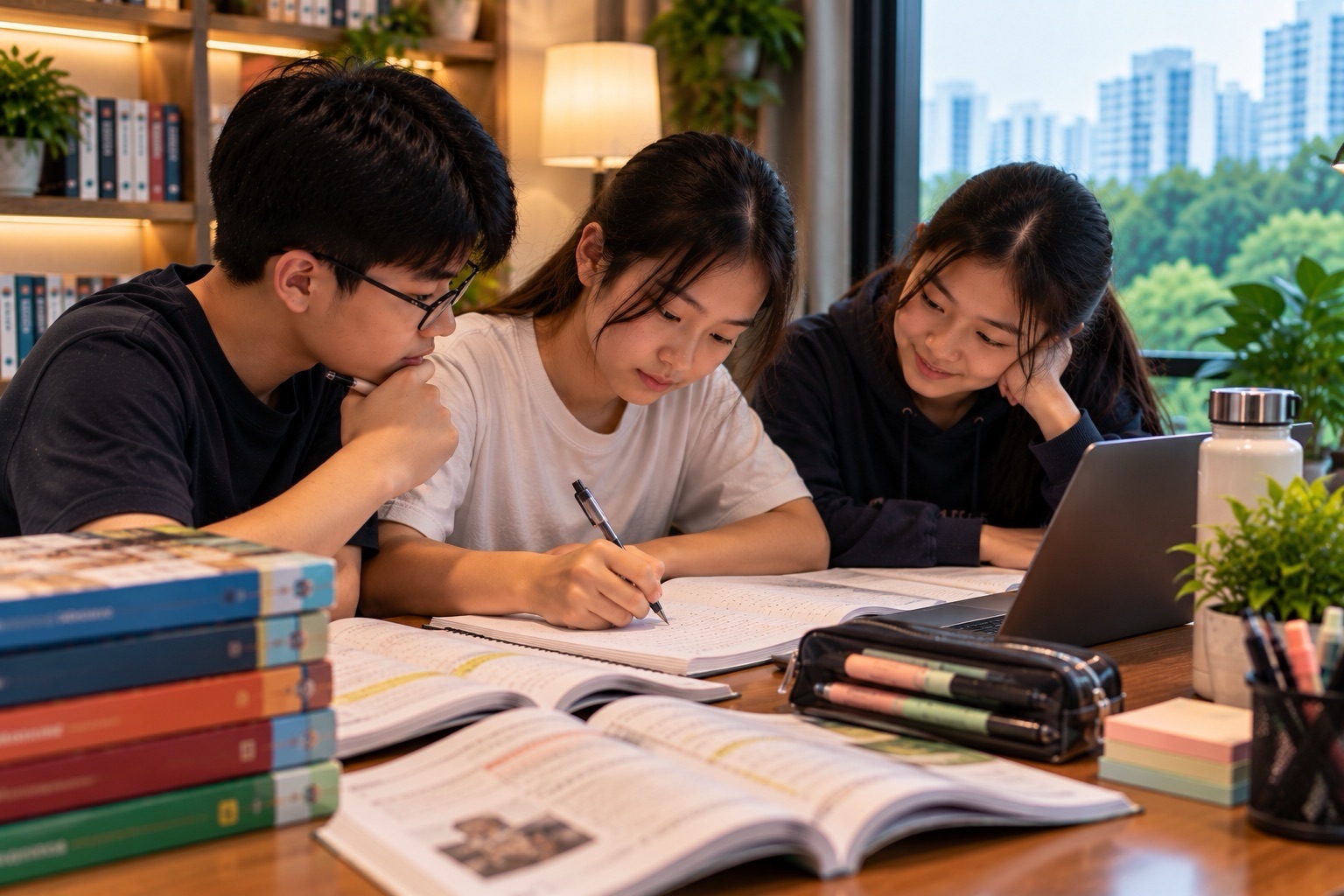
In a group of three, assign roles for a fictional scenario.
One student explains the apparent request. Another identifies the risk and supporting clues. The third suggests a safe response and a trusted adult or official channel when needed.
Then rotate roles for the next example.
For a suspicious login message, the group should recognise urgency, unknown links and requests for secrets.
For a group photograph, they should examine consent, intended audience and identifying details.
For an unkind class chat, they should discuss kindness, appropriate reporting and how to support someone affected.
Every learner should articulate their own reasoning, not merely agree with the most confident group member.
The outcome is usable judgement.
A Twenty-Minute Interland Learning Routine
Use one topic at a time rather than rushing through every island:
- Minutes 1–4: Discuss a fictional online situation and predict a safe response.
- Minutes 5–10: Play the relevant Interland land or part of it.
- Minutes 11–13: Explain why one option was safe and another introduced risk.
- Minutes 14–17: Work through a new scenario that uses the same principle.
- Minutes 18–20: Identify a trusted adult, official support route or privacy setting relevant to the situation.
Do not ask children to reveal passwords or describe embarrassing personal incidents as part of the exercise.
A short, carefully explained lesson can be more useful than an unexamined high score.
The final independent response is the real check of learning.
A Four-Week Cyber Wellness Plan
Week one can focus on sharing and audience awareness, including privacy around photographs and school documents.
Week two can examine suspicious messages, unreliable claims and independent verification.
Week three can cover account protection, unexpected sign-in requests and the role of trusted adults.
Week four can address kindness, reporting, peer support and responsible engagement with AI-generated material.
This is a suggested sequence rather than a formal MOE curriculum map.
Repeat difficult scenarios and adapt to the pupils’ ages and experience.
The most important measure is whether students can identify the actual risk and describe a proportionate response.
Digital judgement develops through practice, not a one-time certificate.
Interland Versus Other Digital Learning Tools
Google Classroom for Students helps pupils complete school assignments and understand submission.
Google Sites for Students supports publishing, audience permissions and digital portfolios.
Google Lens for Students raises questions about image search, provenance and privacy.
Interland focuses on the judgement needed to use such tools responsibly.
It should not be mistaken for a replacement for school ICT training, cyber wellness instruction or account-security support.
These skills matter together. A pupil who can upload a project should also know when it should not be public.
The best lesson links technical capability with thoughtful decisions.
Common Interland and Digital Safety Mistakes
The child finishes the game but clicks suspicious links later. Practise a new message and independent verification.
A photo is shared without consent. Review audience, identify affected people and follow school removal or reporting procedures.
A student trusts a familiar display name. Check the underlying sender through an independently known channel.
A verification code is requested by someone else. Do not share it; seek official account help if needed.
An unkind class message becomes a group joke. Do not amplify it; support the affected child and report appropriately.
A generated image is treated as historical proof. Check its provenance and original sources.
The child is afraid to admit a mistake. Make it clear that prompt help-seeking is safer than hiding an online incident.
A parent thinks completing four game areas proves full cyber awareness. Use changed real-world scenarios and the fifth principle of seeking help.
The repair must match the risk rather than simply repeating the same game.
Frequently Asked Questions
Is Google Interland free?
Yes. Google says Interland and the main Be Internet Awesome materials are free and do not require login.
What age is Interland best for?
Google says it has been particularly well received by ages 7–12, though other ages may use suitable activities with guidance.
Does Interland require a Google Account?
No. The official FAQ states that the free game does not require sign-in or personal information.
What are the four Interland areas?
Reality River, Mindful Mountain, Kind Kingdom and Tower of Treasure, covering deception, sharing, kindness and account security.
Why are there five principles but four islands?
The broader curriculum also teaches Be Internet Brave — When in Doubt, Talk It Out, across its educational resources.
Can it teach children to spot phishing?
It introduces important warning signs and safe decision-making habits. Students still need supervised practice with new scenarios.
Does a strong password guarantee complete safety?
No. Unique strong credentials, additional authentication and careful responses to suspicious requests all contribute to account security.
Does Interland replace Singapore cyber wellness lessons?
No. It is a useful supplement; the school’s current cyber wellness and ICT policies remain authoritative.
How do parents check whether the child understood?
Present a changed fictional scenario and ask the child to identify the risk, explain a safe response and know when to seek adult help.
Official Sources and eduKateSG Learning Routes
- Google — Be Internet Awesome
- Google — Play Interland
- Google — Interland FAQ, Age and Free Access
- Google — Educator Curriculum and Worksheets
- Google — AI Literacy Guide for Educators
- Google — Free Classroom Digital Safety Activities
- eduKateSG — Google Sites for Students
- eduKateSG — Google Lens for Students
- eduKateSG — Google Classroom for Students
- eduKateSG — Perplexity for Students
- eduKateSG — Our World in Data for Students
- eduKateSG — How Vocabulary Really Works
The lasting lesson: Interland makes digital safety memorable, but good judgement is demonstrated outside the game: pause before sharing, verify unusual claims, protect secrets, treat people kindly and seek help when a situation is unsafe or uncertain.