
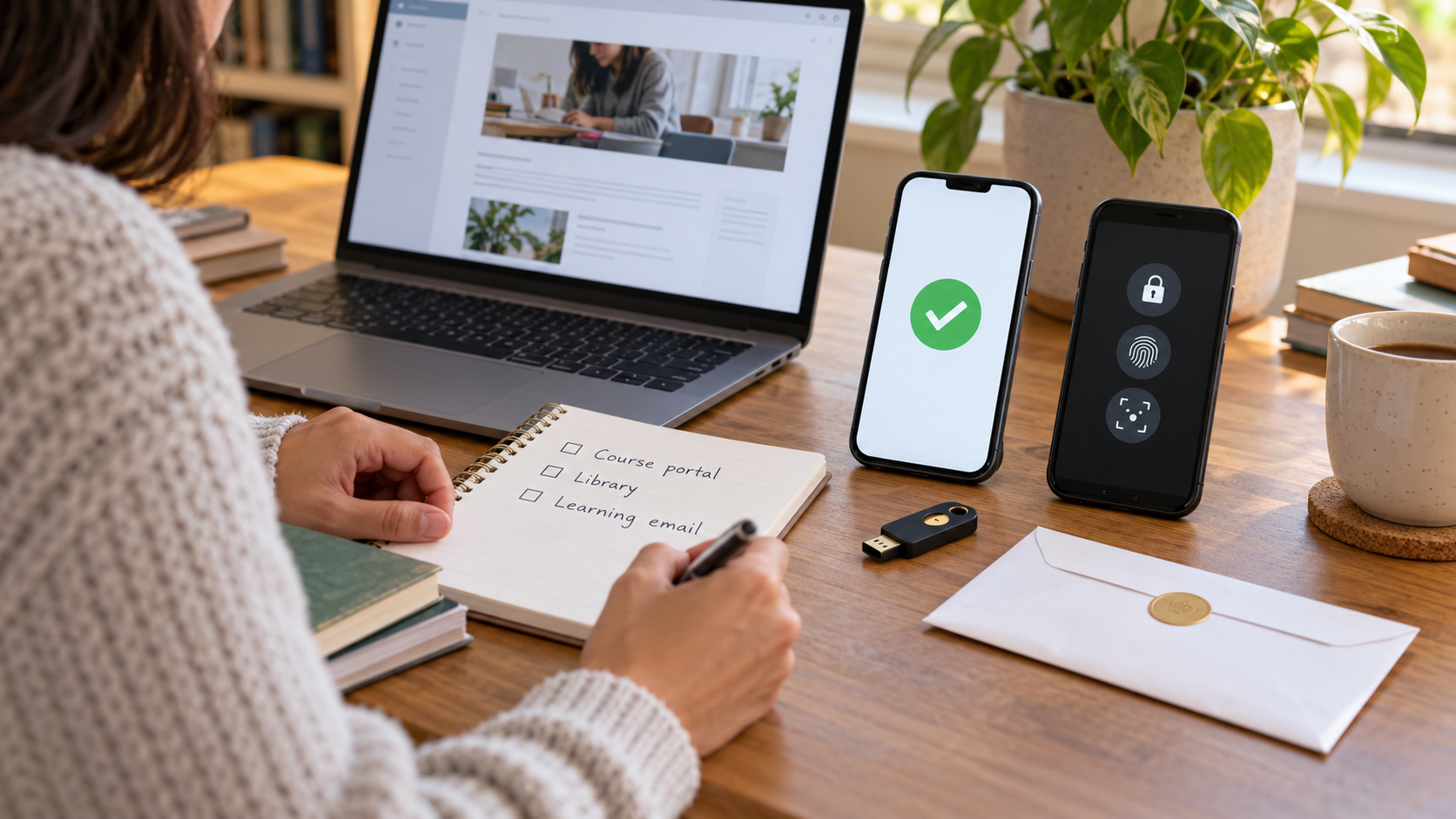
HOW SINGAPORE EDUCATION WORKS · Adult learning, account continuity and safer device changes
Find your next learning step
Before the old device disappears, list learning accounts, add approved recovery methods, test the new route and only then remove the old authenticator or phone.
Full chapter index · Practice and checking · Sources and next reading · How Singapore Education Works
Multi-factor authentication protects a learning account, but it can also become a single point of failure when the only second factor lives on a phone that is replaced, lost or reset. The useful habit is to prepare recovery while access still works.
This is general digital-learning guidance, not a promise that every service supports backup codes, authenticator transfer or self-service recovery. Follow each provider’s official instructions and your institution’s IT rules. Never share one-time codes, recovery codes or approval prompts with another person.
The choices at a glance
| What you notice | Likely issue | Useful next move |
|---|---|---|
| Only the old phone can approve sign-in | The account has one usable second factor | Add an approved alternative or recovery route before changing devices |
| A backup code exists only as a photo on the same phone | Recovery depends on the device being recovered | Store it separately in the provider-approved secure way |
| The new phone shows codes but sign-in fails | The account, time, transfer or enrolment may not match | Use the service’s official setup and test before removing the old method |
Full chapter index
See the structure
Work and diagnose
Repair and practise
Recall, transfer and questions
A password is one proof. An authenticator app, security key, device prompt or verified contact method can be another. If an attacker steals only the password, the second factor can block entry.
The recovery problem appears when the learner also loses the only approved second factor. Good preparation keeps security strong while making legitimate recovery possible.
Do not turn off MFA merely to avoid planning. Add resilience through provider-supported methods and keep them protected.
| Record | Question | Do not record |
|---|---|---|
| Account | Which course or platform uses it? | Password |
| Primary factor | Which device or key approves sign-in? | Current one-time code |
| Recovery route | Backup code, second key, alternate method or help desk? | Recovery code in an unprotected shared file |
| Ownership | Personal or institution-managed? | Assumptions about export or transfer rights |
| Test date | When was independent sign-in last confirmed? | Sensitive screenshots |
Separate personal accounts from institution-managed accounts. A school or employer may control enrolment, recovery and device removal.
Use neutral labels such as “recovery code stored in approved password manager” rather than copying the code into the inventory.
Assumptions: an adult learner has three services. Service A supports authenticator transfer and backup codes. Service B uses a device prompt plus an alternate email. Service C is institution-managed and requires the official IT portal to register a new device.
While the old phone still works, the learner follows A’s official transfer steps, generates fresh backup codes and tests one new-device sign-in. For B, the learner confirms the alternate email and tests a browser sign-in. For C, the learner registers through the institution’s approved route and does not try to export organisational secrets.
Checked state: all three services were tested independently on the new device or browser before any old factor was removed. Recovery information is stored separately from the phone, and C remains governed by the institution.
The sequence matters: prepare, test, then retire. A list of intended steps is not proof that recovery works.
A lost device is an incident: use the provider’s security page, review sessions and follow official recovery or institutional support. A code failure may involve the wrong account, expired code, device time or incomplete transfer. A managed account may simply forbid self-service changes.
Do not keep approving prompts you did not initiate. Treat unexpected requests as suspicious and use an independently reached official support route.
Avoid repeated guesses that may trigger lockouts. Record the exact message without exposing secrets, then use the documented help path.
- Inventory learning accounts and their current approved factors.
- Add a supported backup method while signed in.
- Test a fresh sign-in without relying on the old session.
- Retire or revoke the old device only after successful tests.
- Review active sessions, recovery contacts and stored codes.
When a provider regenerates backup codes, older codes may stop working. Follow that provider’s documentation and replace the stored set.
Never email recovery codes to yourself in plain text or leave them in the same bag as the only device and password record.
Guided
Open the official security settings, name every current factor and locate the recovery instructions without changing anything.
Shared
With an authorised helper or IT support, add one approved alternative and confirm where it is stored.
Independent
Sign out of a non-critical test session, sign in through the planned route and note the test date. Do not deliberately lock yourself out or expose codes for practice.
Review the inventory after a phone-number change, course completion or institution exit. Recovery contacts age quietly; a method that worked last year may no longer be available.
Global services use different terms—2FA, MFA, two-step verification, security information—but the continuity question is similar: can the rightful learner prove identity if one device disappears?
Changed-context transfer: apply the same preparation before international travel, where a home SIM, local number, security key or managed help desk may not be equally reachable.
Should I photograph backup codes?
A photo on the same phone fails when the phone is lost and may sync unexpectedly. Use the service’s recommended secure storage method separate from the device.
Can support bypass MFA for me?
Do not assume so. Some providers explicitly cannot restore access without approved verification. Prepare supported recovery routes in advance.
Should I keep the old phone signed in forever?
No. Once the new route is tested, retire old access according to the provider or institution’s instructions.
What if the device is already lost?
Use an independently reached official provider or institutional recovery route, review account sessions and report suspicious activity. Do not share codes with anyone who contacts you unexpectedly.
Sources and next reading
- Cyber Security Agency of Singapore — Protecting Individuals and Businesses From Data Breaches
- Google Account Help — Sign in with backup codes
- Google Account Help — Get verification codes with Google Authenticator
- Microsoft Support — How to use two-step verification with your Microsoft account
- Microsoft Support — Restore account credentials from Microsoft Authenticator
Continue inside eduKateSG
- Adult learning account exit
- Adult online learning storage cleanup
- Adult online learning offline downloads and sync