
HOW SINGAPORE EDUCATION WORKS · Adult learning offline
Find your next learning step
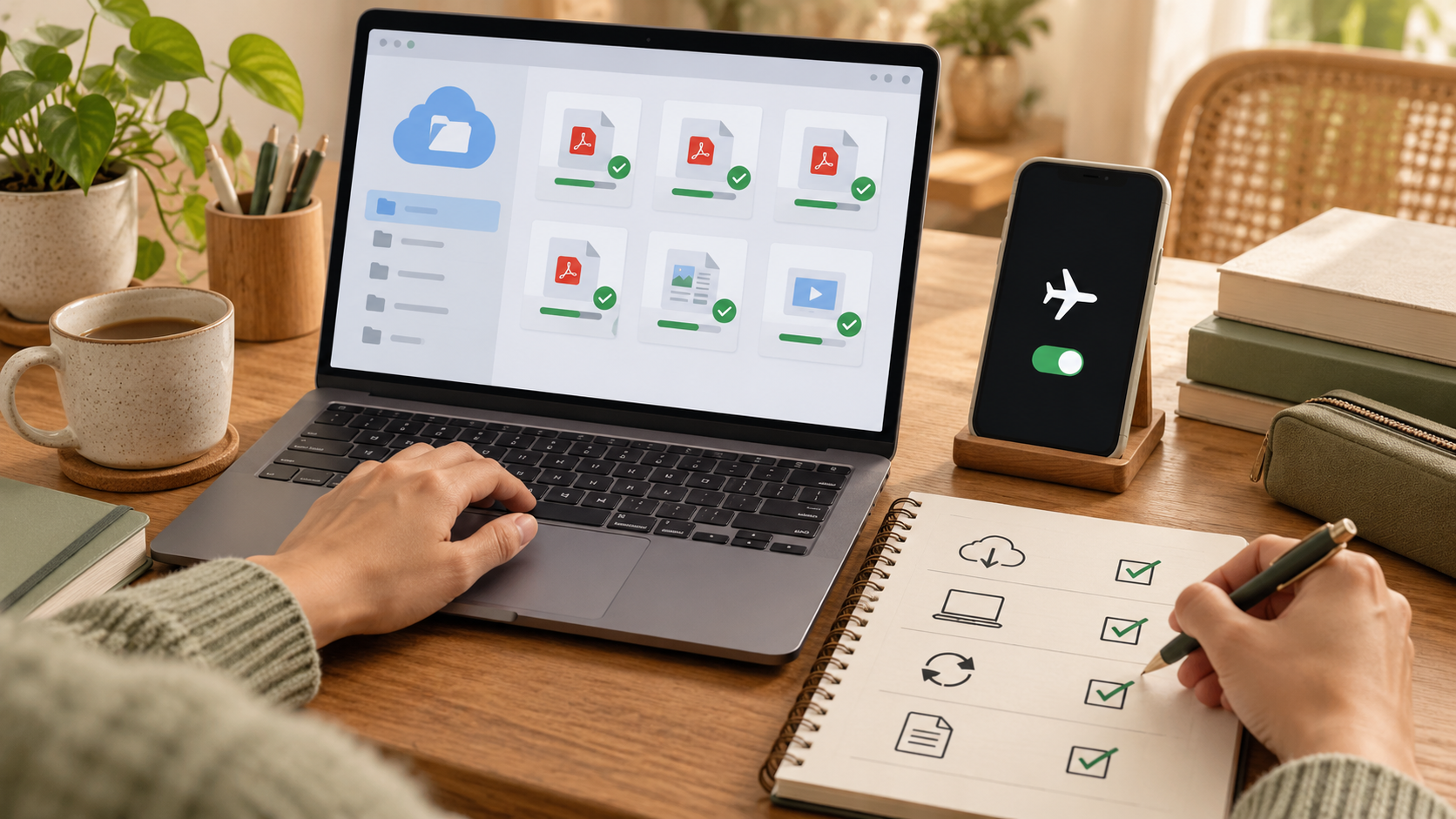
Download only the files you are authorised to keep, verify them with the network off, note the course version and reconnect before submitting. A cloud icon is not the same as a local copy.
Full chapter index · Practice and checking · Sources and next reading · How Singapore Education Works
Offline study succeeds only when the needed files are actually stored on the device, open without the network and can be reconciled with later course changes. Seeing a filename in a synced folder does not always mean its contents are available offline.
This is a personal study workflow, not permission to copy restricted material or bypass a platform. Follow the provider’s access, copyright, device-security and submission rules. Some interactive lessons, quizzes, video licences and workplace resources cannot be used offline even when a page or shortcut is visible.
The choices at a glance
| What you notice | Likely issue | Useful next move |
|---|---|---|
| The file is visible but will not open on a flight | It was an online-only placeholder | Mark it for offline use and test in airplane mode |
| Two files have similar names and different instructions | The learner lacks a version reference | Record course location, title and last-modified time |
| Offline edits disappear or conflict after reconnecting | Sync direction and conflict handling were not checked | Keep one working copy, reconnect deliberately and inspect status |
Full chapter index
See the structure
Repair and practise
Recall, transfer and questions
Discovery means the learner can see the course item. Download means the file bytes are stored locally. Permission means the account and application allow the file to open. All three must hold when the network is unavailable.
A cloud placeholder may list the file without storing it. A downloaded file may still require an application, licence or recent sign-in. An interactive page may have no meaningful offline copy at all.
Build the offline pack from the authoritative course page, not from an old email attachment whose version is uncertain.
A manifest is a short list of what you intend to use offline. Record the course, item title, authoritative location, last-modified date if visible, local filename, offline status and whether edits must be uploaded later.
| Item | Offline action | Verification |
|---|---|---|
| Reading PDF | Download or keep on device | Open at page 2 with network off |
| Slide deck | Download approved format | Check fonts and diagrams render |
| Video | Use platform offline feature if permitted | Play one minute in offline mode |
| Assignment template | Save one working copy | Edit, close and reopen locally |
| Quiz or forum | Usually remain online | Schedule connection rather than copying |
Keep the pack narrow. Downloading an entire shared library can waste space, expose unrelated material and make version checking harder.
Assumptions: Arun will study without reliable internet. The course week contains a 12-page PDF revised at 18:00, a slide deck, a streamed video with an approved offline button and an online quiz due tomorrow. The learning platform is authoritative.
Arun downloads the PDF after 18:00 and names his personal note copy “Week-4-reading-notes”, without renaming the source. He marks the deck as always available on the device, uses the platform’s offline video feature and adds the quiz deadline to his calendar. He then enables airplane mode and opens each local item. The quiz is left for a connected session.
Checked answer: the three permitted study items open offline; the authoritative PDF version is tied to the visible revision time; the online-only quiz is not falsely treated as downloaded. Arun has a plan to reconnect before the deadline rather than assuming an offline answer can be submitted.
Pause or disconnect the network, then open each file from the route you will use later. Move beyond the first page, play part of the media and confirm that any required app can access it.
Check storage space, battery, charger and device lock. For sensitive workplace or learner data, use only an approved device and location. Do not move files into personal apps merely to make them easier to reach.
Take a screenshot or note of the course week and deadlines only if policy permits. The offline pack should support study, not become an uncontrolled duplicate of the learning system.
When the network returns, open the sync client or course platform and wait for status to settle. Confirm that uploads are complete before shutting the device or deleting local work.
If the source changed while you were offline, compare rather than overwrite automatically. Keep the new official source, preserve your notes separately and merge only the content you own and understand.
For a conflict copy, record which device and time produced each file. Submit only through the approved course route, then verify the receipt or submission state.
Guided pack
- Open the authoritative course week.
- Choose only permitted offline items.
- Download and test each item with the network off.
Shared rehearsal
- Compare manifest with local folder.
- Make one harmless edit and reopen it.
- Reconnect and inspect sync status without deleting anything.
Independent routine
Before each commute or trip, the learner refreshes the manifest, checks changed files and deadlines, tests the pack offline and reserves a connected window for submissions.
A week later, explain the difference between visible, downloaded, authorised and synced without opening the app. If those states blur together, simplify the manifest.
OneDrive, Google Drive, learning-management systems and mobile apps use different icons and wording. Across platforms, the transferable questions are: where is the authority, are the bytes local, will the app open them, which version is current and what must sync later?
Changed-context check: join an overseas short course whose files use another time zone and date format. Record the course’s stated deadline zone and compare revision timestamps carefully after reconnecting.
Is a green check always proof a file will open offline?
It often indicates local availability in a sync system, but icons vary. Disconnect and open the file to verify the real workflow.
Should I download the whole course?
Usually not. Download the authorised items needed for the planned session and keep an online route for current instructions.
Can I submit while offline?
Only if the platform explicitly supports an offline queue and you have tested it. Otherwise reconnect, submit through the official route and confirm receipt.
What if the course file changed while I was offline?
Keep your notes, fetch the current source, compare versions and follow the provider’s update guidance. Do not silently overwrite the authoritative file.
Sources and next reading
- Microsoft Support — Save Disk Space with OneDrive Files On-Demand
- Microsoft Support — Work with Synced Files in File Explorer
- Google Drive Help — Use Google Drive Files Offline
Continue inside eduKateSG
- Adult online learning with a separate browser profile
- Adult online learning notification controls
- Adult learning calendar invitations across time zones